High Definition Stream: Get Clearer Video and Smoother Playback
A sharp face, clear text, and fine details can make a video feel vivid. However, a high definition stream can look soft or keep buffering when the source, device, settings, or internet connection falls short. Learn what HD means, choose a useful quality level, and fix common playback problems to enjoy a better high definition stream without wasting data.
See What a High Definition Stream Means on Screen
HD describes a video with more picture detail than standard definition. But a resolution label tells only part of the story. The source video, data rate, screen, and playback conditions also shape what you see.
Compare HD, Full HD, and 4K UHD Resolutions
A 720p video has 1280 × 720 pixels and is often called HD. Full HD, or 1080p, has 1920 × 1080 pixels. A 4K UHD video has 3840 × 2160 pixels, giving it four times as many pixels as 1080p. These resolutions determine the level of detail you can expect from a high definition stream.
More pixels can show finer detail, especially on a large screen. The difference may be harder to spot on a phone or from across a room. Viewing distance and the quality of the original video also matter when choosing the right high definition stream resolution.
Understand Resolution, Bitrate, and Frame Rate
Resolution is the size of the picture in pixels. Bitrate is the amount of data used to encode video over time, while frame rate is the number of frames shown each second. These three elements work together to determine the overall quality of a high definition stream and influence how clear and smooth the video looks.
A 1080p label does not guarantee a crisp image. Low bitrate can make details look blocky or smeared, while a low frame rate can make fast movement appear less smooth. A high-quality source, balanced encoding, and stable playback are just as important as the resolution setting when enjoying a clear high definition stream.Check Whether a Video Is Actually Streaming in HD
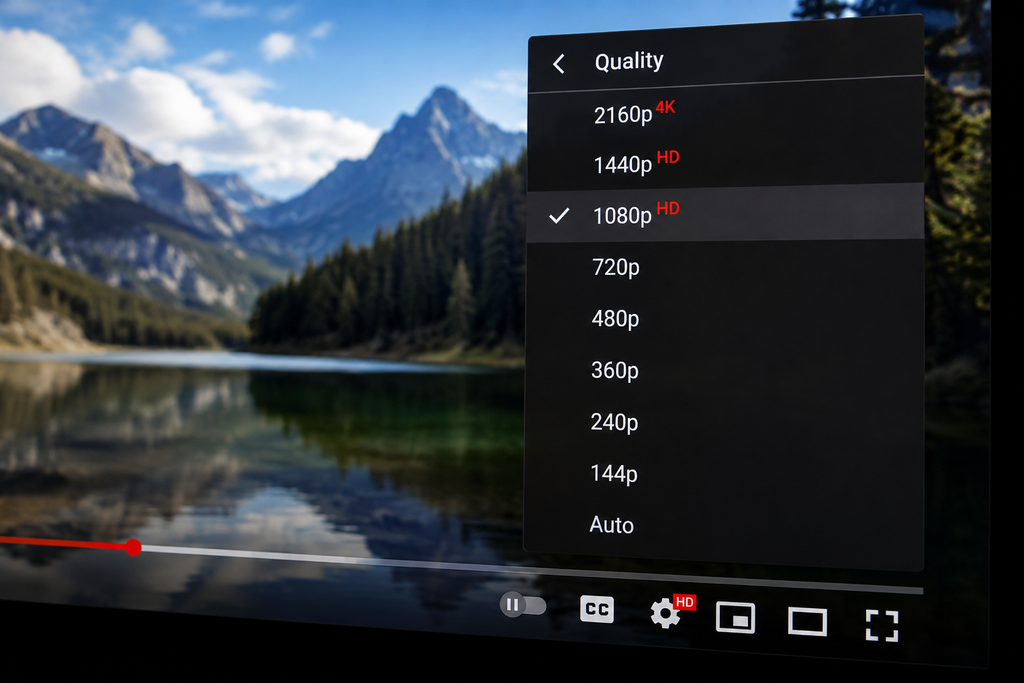
On YouTube, open the video’s settings menu and look under Quality to see or select an available resolution. On Netflix, playback and account settings can affect the quality of a high definition stream; the controls and options vary by device. If you cannot find a setting, check the service’s help page for your app or device.
Available quality can depend on the title, subscription plan, device, and internet connection. Some services also adjust quality automatically, so the selected resolution may change during playback. Check the settings while the video is playing to make sure you are getting the best available high definition stream quality.
Match Stream Quality to Your Screen and Viewing Habits
The highest setting is not always the best choice. A quality level that suits your screen and connection can look good while reducing pauses and data use.
Choose a Resolution That Suits Your Display
On a phone, 720p may look clear because the screen is small and close to your face. A laptop can show the difference between 720p and 1080p more easily, though the result depends on the screen. On a large living-room TV, 4K can add visible detail when the video and device support it. Choosing the right resolution helps you enjoy a high definition stream that matches your display without using unnecessary bandwidth.
Try a few available settings on the same scene. Fine text, hair, and distant details make useful points of comparison. If the picture looks similar at two settings, the lower one may be enough for that screen while still providing a satisfying viewing experience.
Balance Picture Quality With Data Use
Higher-quality video generally uses more data than lower-quality video. The amount varies by service, title, codec, and playback conditions, so there is not one reliable figure for every stream. This is important when watching a high definition stream, especially on mobile plans or home internet connections with a data cap.
Check your provider’s current data-use guidance and app settings. Some services let you choose a lower quality for mobile playback or downloads. Adjusting the resolution can help you manage data consumption while maintaining a suitable high definition stream quality for your device.
A lower setting can help you stay within a data limit without changing your home TV settings. Choose the resolution that offers a good balance between picture clarity and data usage while enjoying a comfortable viewing experience.
Use Automatic Quality Settings Strategically
Adaptive streaming raises or lowers video quality as your connection changes. This technology helps maintain a smooth high definition stream when Wi-Fi conditions vary throughout the day, allowing playback to continue without requiring manual adjustments. The trade-off is that picture quality may change temporarily during a scene.
If a high definition stream keeps stalling, select a lower resolution for a short time. This can reduce interruptions while you check your internet connection. Once the network becomes stable, switch back to automatic playback to enjoy the best available picture quality.
Automatic playback helps the service adjust the high definition stream to your connection conditions, balancing smooth playback with image clarity.
Prepare Your Internet Connection and Devices for HD Streaming
A fast internet plan can help, but the connection in the room matters too. Device limits, app settings, and other household activity can affect playback.
Check the Connection Where You Watch
Run a connection test on the device you use for streaming, in the same room where you watch. A speed test near the router may not reflect weaker Wi-Fi in another room. Compare Wi-Fi with a wired connection if your TV or streaming device has an Ethernet port. A stable connection is essential for enjoying a smooth high definition stream without frequent interruptions.
Other people’s video calls, game downloads, and large file transfers can compete for the same connection. This may affect the stability of a high definition stream, especially when several devices are active at once. Pause a large download and test the stream again to see whether playback improves.
Provider recommendations vary, so check your streaming service’s current guidance instead of relying on one speed target. A stable connection is important for maintaining consistent high definition stream quality.
Confirm Device and App Support

Check the supported resolution for your TV, streaming box, browser, or phone. An older device may cap playback below 1080p or 4K, even when the internet connection is strong. The same can happen if an app or browser is out of date.
Confirm that the service’s app is installed and updated on the device. If you use a web browser, check the service’s device requirements. Different browsers and devices can support different playback options.
Review Account, Title, and Playback Settings
Your subscription plan may limit the available resolution, and not every title is offered in HD or 4K. Profile settings, data-saver modes, and account playback preferences can also lower the quality of a high definition stream. Review the current plan details and help pages for your service to understand which resolutions are supported.
Check the settings on the profile you use, since preferences may not apply to every account profile. If a show looks softer than other titles, compare its listed quality with a video known to be available in HD. This helps you identify whether the issue comes from the source, your device, or your internet connection.
Fix Buffering, Blur, and Other Common HD Streaming Problems
Start with changes that are quick to test. Adjust one thing at a time, then replay the same scene to see whether it helped.
Reduce Buffering Without Lowering Quality More Than Needed
Pause other large downloads and move closer to the router. Restart the streaming app, then check playback again. If your high definition stream still pauses, lower the resolution temporarily and see whether the video runs smoothly.
A wired connection can help identify a Wi-Fi problem. If it works better than Wi-Fi, try moving the router to an open spot or reducing obstacles between it and the viewing device. Return to your previous setting after each test so you can identify which change made a difference.
Improve a Picture That Looks Soft or Pixelated
First, check that the title is available in HD and that the player has not selected a lower resolution. Then confirm that your TV, app, and streaming device support the quality you want for a high definition stream. A data-saver setting may also be limiting the picture quality.
Compression and a low-quality source can make video look poor even on a capable screen. If only one title looks blurry, the source may be the cause. If all videos look soft, review your device’s output settings and test another app to identify the problem.
Troubleshoot Device and Service Interruptions
Update the streaming app, then restart your TV or streaming device. Check the service’s status page if your high definition stream fails across more than one title. A temporary outage can sometimes look like a problem with your home setup.
If the issue continues on multiple devices, note the error message, device model, and time of the problem. Contact the streaming service or internet provider with these details. They can help identify account, network, or service-related faults.
Stream HD Video Safely and Legally

The source matters for picture quality and account safety. Use services you trust, and check their terms before signing up or sharing access.
Choose Licensed Streaming Sources
Use authorized services and their official apps or websites to enjoy a reliable high definition stream. Licensed sources are more likely to provide stable playback, clear subscription terms, and customer support. Avoid unfamiliar sites that promise free access to paid content, as they may expose your device or personal information to unnecessary risks.
Protect Accounts and Connected Devices
Use a unique password for each streaming account and keep apps and devices updated. Review signed-in devices and account-sharing settings from time to time. Be careful with download prompts or sites that ask for personal details they do not need.
Verify Quality Claims Before Subscribing
Check the service’s current plan details, device list, and title catalog before paying. An advertised 4K option does not mean every title or device will play in 4K. Confirm that your screen and streaming device support the format as well.
Choose the Right High Definition Stream for Your Setup
Start with a licensed source and a device that supports the title’s available quality. Choose a resolution that suits your screen, then account for connection stability and data limits. The best setting is the one that looks clear and plays without constant pauses.
Keep These Key Takeaways in Mind
HD commonly means 720p or 1080p, while 4K UHD is a higher-resolution format. Resolution is only one part of picture quality; bitrate, frame rate, source quality, device support, and network conditions all play a role. A 4K label cannot make a low-quality source look detailed.
Make One Improvement at a Time
Check the player’s quality setting first. If that does not help, test Wi-Fi where you watch or update the app. Change one factor, replay the same scene, and keep the setting that improves your picture without adding pauses or unnecessary data use.
What Affects the Quality of an HD Video Stream?
Getting a high definition stream to look good involves more than choosing 1080p or 4K. Several technical and practical factors work together to determine how the picture appears. Understanding these elements can help you identify the reason behind poor playback and make better choices when selecting a streaming service.
The Importance of Video Source Quality
The original recording has a major influence on the final image quality. If a video was recorded with limited detail, heavy compression, or poor lighting, increasing its resolution will not automatically restore information that was never captured. This also affects the visual quality of a high definition stream.
For example, an older television programme may be available in an HD-compatible format without having the same original detail as a modern production recorded with high-quality cameras. Upscaling can make the image fit a larger display, but it cannot recreate every missing detail.
This is why it is useful to consider the source before judging the performance of a streaming platform. Two videos advertised at 1080p can look noticeably different because their original recordings and encoding methods are not identical.
How Video Compression Changes the Picture
Video files contain a large amount of information. Compression reduces the amount of data needed to transmit and store them, making online playback more practical and helping deliver a smooth high definition stream.
Modern codecs can preserve useful visual details while reducing file sizes. However, aggressive compression may introduce visible problems, particularly in scenes with fast movement, smoke, water, grass, or complicated backgrounds.
You may notice blocks around objects, blurred edges, or a loss of fine texture. These effects can become more obvious on larger screens.
A good streaming platform balances compression with visual quality. The objective is not simply to send the largest possible video file but to deliver a picture that remains clear without putting unnecessary pressure on the internet connection.
Why Consistent Performance Matters
A connection that delivers high speeds occasionally may still struggle with continuous playback. Streaming requires a reasonably consistent flow of data, particularly when watching a high definition stream or other high-resolution content.
Short interruptions can cause buffering, while sudden drops in available bandwidth may trigger automatic quality adjustments. Even if a speed test reports an impressive result, unstable Wi-Fi can still affect the actual viewing experience.
If you regularly experience interruptions, compare your connection at different times of the day. This can help identify whether the problem occurs during busy household periods or continues throughout the day.
Wired Internet or Wi-Fi: Which Is Better for HD Streaming?
Both wired internet and wireless connections can support high-quality video. The better option depends on your equipment, router location, network environment, and personal setup.
Advantages of Using an Ethernet Connection
An Ethernet cable connects a compatible television or streaming device directly to the router. This removes some of the variables associated with wireless signals, such as walls, distance, and interference from nearby networks, helping maintain a stable high definition stream.
For a television that stays in one place, a wired connection can provide a convenient and consistent setup. It may be particularly useful when several people use the same Wi-Fi network for gaming, downloads, and video calls.
However, Ethernet does not automatically solve every streaming problem. Router performance, internet service quality, device limitations, and the streaming platform itself can still affect playback.
When Wi-Fi Is a Practical Choice
Wi-Fi offers more flexibility because you do not need to run cables across the room. Phones, tablets, laptops, and many smart televisions can connect wirelessly and play a high definition stream without a direct cable connection.
For better results, place your router in an open and central location. Avoid hiding it inside a closed cabinet or placing it directly behind large objects. Keep the router away from equipment that may cause interference.
If your router supports both 2.4 GHz and 5 GHz bands, check which one works better for your device. The 2.4 GHz band generally covers longer distances, while 5 GHz can provide higher speeds over shorter distances in suitable conditions.
Understand the Role of Modern Wi-Fi Standards
Newer Wi-Fi standards are designed to improve network capacity, efficiency, and performance. However, the benefits depend on whether your router and connected devices support the same standard, which can affect the stability of a high definition stream.
Buying a new router will not necessarily improve a poor video source or solve a problem caused by an overloaded internet connection. Before upgrading, identify the actual limitation in your setup.
For many households, a correctly positioned router and a suitable internet package are enough for everyday HD viewing.
How to Get a Better HD Streaming Experience on Different Devices
The steps for improving playback can vary depending on the device. A television, smartphone, laptop, and dedicated streaming box each have different settings and hardware capabilities.
Improve HD Streaming on Smart TVs
Smart televisions provide access to streaming applications without requiring an additional device. Their performance depends on the television’s operating system, network connection, available storage, and supported video formats, all of which can affect the quality of a high definition stream.
Start by checking the TV’s display resolution. If you have a 4K television, confirm that the content and application support 4K playback. Remember that the screen’s maximum resolution does not guarantee that every video will be delivered at that quality.
Keep the television’s software and installed applications updated. Manufacturers regularly release updates that may address compatibility issues, improve stability, or fix playback errors.
If applications take a long time to load, check available storage and close unnecessary background processes where supported. Restarting the television can also help when an application becomes unresponsive.
Enjoy Clearer Playback on Android TV Devices
Android TV and Google TV devices provide access to a range of streaming applications. Depending on the model, they may support HD, Full HD, or 4K playback, allowing you to enjoy a high definition stream when the content and connection are compatible.
Check the display output settings and select a format supported by both the device and television. Using an unsupported setting may lead to display problems or prevent you from getting the expected picture quality.
Also review the applications installed on your device. Removing applications you no longer use can free storage space and make the interface easier to manage.
When playback becomes inconsistent, test another supported application. If one application works correctly while another does not, the issue may be related to the specific app rather than the television or internet connection.
Set Up an Amazon Fire TV Stick for HD Playback
A Fire TV Stick can turn a compatible television into a connected entertainment device. Its available video quality depends on the exact model, display support, application, and content source.
Check the display settings in the device menu and make sure the selected output is compatible with your television. You should also install application updates when they become available.
Avoid installing applications from unfamiliar sources simply