Streaming Quality Improvement: 11 Powerful Ways to Enjoy a Smoother Viewing Experience
Introduction
Streaming has become an important part of everyday entertainment, allowing people to watch movies, television shows, documentaries, sports, and other digital content whenever they want. However, the quality of the viewing experience can vary depending on internet speed, device performance, network stability, video settings, and several other technical factors. Understanding streaming quality improvement can help users identify the reasons behind poor playback and make practical changes to enjoy more consistent video performance.
A smooth streaming experience is not determined by internet speed alone. Even a fast internet connection may experience interruptions when the wireless signal is weak, the router is overloaded, the device has limited resources, or the video settings are not properly configured. By focusing on streaming quality improvement, users can better understand how these factors work together and discover effective ways to reduce buffering, improve picture clarity, and maintain stable playback.
This guide explores practical methods for streaming quality improvement, covering network optimization, hardware, video resolution, Wi-Fi configuration, device maintenance, and troubleshooting techniques that can help create a more comfortable home entertainment experience.
1. Understand What Affects Streaming Quality

Before making changes, it is important to understand the main factors that influence video playback. Streaming quality improvement begins with identifying the potential causes of interruptions, including insufficient bandwidth, high network latency, unstable connections, device limitations, and temporary service problems. Each of these factors can affect how quickly video content loads and how consistently it plays.
Bandwidth determines how much data your connection can transfer within a specific period, while latency measures how long information takes to travel between devices and servers. Network congestion may reduce available bandwidth, especially when several devices are connected simultaneously. For effective streaming quality improvement, users should consider both connection speed and stability instead of relying exclusively on the results of a speed test.
The viewing device also plays an important role because older hardware may struggle to process high-resolution video, complex applications, or demanding interfaces. Understanding these limitations makes streaming quality improvement easier and helps users choose the most appropriate solution for their particular setup.
2. Choose the Right Internet Speed for Your Needs

Internet speed is one of the most important elements of streaming quality improvement, particularly when watching high-definition or ultra-high-definition content. Different video resolutions require different amounts of data, and a connection that works well for standard video may not provide enough bandwidth for 4K playback, especially when multiple people use the network.
For regular HD viewing, a reasonably stable broadband connection is often sufficient. Higher resolutions generally require more available bandwidth, and additional capacity is useful when several televisions, computers, smartphones, or gaming devices are active at the same time. A connection with enough spare capacity can support streaming quality improvement by reducing the likelihood of bandwidth shortages during busy periods.
Users should test their internet connection at different times of the day to understand whether performance changes during evenings or weekends. Comparing results can reveal whether congestion is affecting the connection. Choosing a suitable internet plan and avoiding unnecessary network overload can make a meaningful difference to streaming quality improvement.
3. Position Your Router for Better Wi-Fi Coverage
Router placement can significantly influence wireless performance throughout a home. One of the easiest methods of streaming quality improvement is to position the router in a central, open location where its signal can reach the television and other connected devices without unnecessary obstacles.
Walls, metal objects, furniture, mirrors, and electronic equipment may interfere with Wi-Fi signals or reduce their strength. Placing a router inside a cabinet, behind a television, near the floor, or in a distant corner may create weak coverage areas. For better streaming quality improvement, keep the router elevated and away from large obstructions whenever possible.
A central router location can provide more balanced wireless coverage between rooms. If your television is located far away from the router, consider adjusting the router position or using a compatible mesh Wi-Fi system. Improving signal coverage is an important part of streaming quality improvement, particularly in larger homes or properties with multiple floors.
4. Use Ethernet Instead of Wi-Fi When Possible

Wireless connections are convenient, but they may be affected by interference, distance, congestion, and obstacles. A wired Ethernet connection can support streaming quality improvement by providing a more stable connection between your television, streaming box, computer, and router.
Ethernet is particularly useful for devices that remain in one place, such as televisions and home entertainment systems. Connecting these devices directly to the router can reduce wireless interference and help maintain consistent network performance. For users experiencing frequent buffering, testing Ethernet is a practical way to determine whether Wi-Fi is responsible for the problem.
Although Ethernet does not automatically increase your internet subscription speed, it may provide a more dependable connection under certain conditions. This type of streaming quality improvement can be especially helpful when watching high-resolution content or using the network during busy periods.
5. Select the Appropriate Wi-Fi Frequency Band
Modern routers commonly support 2.4 GHz and 5 GHz Wi-Fi bands, while some newer equipment also supports 6 GHz. Understanding their differences can contribute to streaming quality improvement by helping users select the band that best suits their device location and network environment.
The 2.4 GHz band generally offers wider coverage and better penetration through walls, but it can be more congested because many household devices use the same frequency. The 5 GHz band can provide higher speeds over shorter distances and may perform better in environments where the 2.4 GHz band is crowded. The 6 GHz band can offer additional capacity with compatible equipment, although its coverage is generally more limited by physical obstacles.
Choosing the right band depends on the distance between the router and television, the capabilities of the connected device, and interference in the surrounding environment. Testing different bands can support streaming quality improvement by revealing which connection delivers the most consistent playback.
6. Adjust Video Resolution and Playback Settings
Video resolution affects image detail, data consumption, and the amount of bandwidth required for playback. An important approach to streaming quality improvement is selecting a resolution that matches the available connection instead of always choosing the highest possible setting.
Full HD may provide a clear picture on many television sizes and viewing distances, while 4K can deliver additional detail on compatible displays. However, higher resolution requires more data, and a weak or congested connection may struggle to maintain uninterrupted playback at demanding settings.
Automatic quality settings can help applications adapt to changing network conditions, although the behavior depends on the application and available content. Users experiencing buffering may temporarily lower the resolution to see whether playback becomes more stable. This simple adjustment can contribute to streaming quality improvement without requiring new equipment or a more expensive internet plan.
7. Reduce Network Congestion at Home
A household network may include smartphones, laptops, tablets, smart home devices, gaming consoles, security cameras, and televisions. When many devices transfer data simultaneously, available bandwidth can become limited. Managing network activity is a practical method of streaming quality improvement.
Large downloads, cloud backups, software updates, online gaming, and video calls may compete with streaming traffic. When playback becomes unstable, check whether other devices are performing bandwidth-intensive tasks. Pausing unnecessary downloads or scheduling updates for later can help free up network capacity.
Some routers include Quality of Service settings that allow users to prioritize particular devices or traffic types. When configured correctly, these options may help a television or streaming device receive more consistent network resources. Managing congestion can make streaming quality improvement more noticeable during busy household periods.
8. Keep Streaming Devices Updated
Software updates can improve application compatibility, security, stability, and device performance. Regular maintenance is an essential part of streaming quality improvement, especially when applications begin freezing, loading slowly, or displaying unexpected errors.
Check whether your television, streaming box, operating system, and entertainment applications have available updates. Manufacturers may release updates that fix playback problems, improve decoding performance, or address network-related bugs. Keeping software current can help devices function more efficiently.
However, updates should be installed through official settings or trusted sources. Avoid unknown files and unnecessary third-party modifications that may introduce security risks or interfere with normal device operation. A well-maintained device supports streaming quality improvement by reducing avoidable software problems.
9. Manage Device Storage and Background Applications
Streaming devices with limited storage or memory may become slower over time, particularly when several applications are installed or running simultaneously. Improving device responsiveness can support streaming quality improvement by making applications launch faster and reducing unnecessary system activity.
Review installed applications and remove those you no longer use. If your device allows it, clear the cache of applications that have accumulated temporary files. Cached data can help applications load faster, but excessive or corrupted cache files may sometimes contribute to unexpected behavior.
Restarting the device can also close unnecessary background processes and refresh its operating environment. These basic maintenance steps may help resolve slow menus, application crashes, or delayed responses. Although they do not increase internet bandwidth, device maintenance can contribute to overall streaming quality improvement.
10. Check Your Television Picture Settings
Picture settings influence how video looks on the screen, even when the internet connection is performing well. For streaming quality improvement, users should make sure the television is configured to display content clearly without excessive processing or unnatural visual effects.
Many televisions include picture modes such as Standard, Cinema, Movie, Vivid, or Filmmaker Mode. Cinema or Filmmaker modes may provide more natural colors and brightness in certain viewing environments, while Standard may be suitable for everyday use. The best setting depends on room lighting, personal preference, and the television model.
Additional settings such as sharpness, motion smoothing, contrast, color temperature, and noise reduction may also affect image appearance. Excessive sharpness or motion processing can create unwanted visual artifacts. Adjusting these settings carefully can support streaming quality improvement by making movies and shows look more comfortable and consistent.
11. Troubleshoot Buffering and Playback Problems
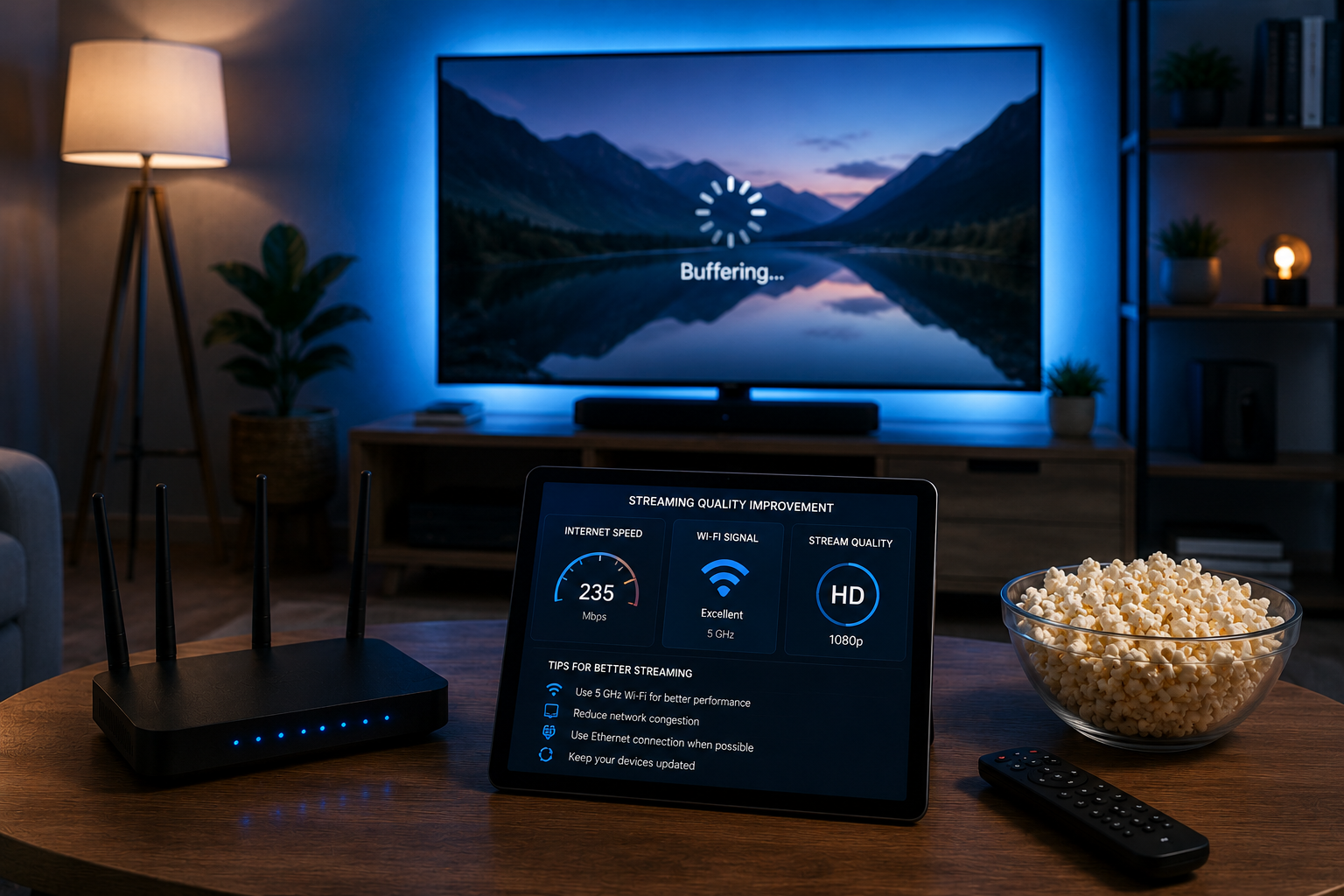
Buffering occurs when a video player cannot receive or process data quickly enough to maintain uninterrupted playback. Effective streaming quality improvement requires identifying whether the problem comes from the internet connection, wireless network, device, application, or the content provider.
Begin by restarting the television or streaming device and checking the router. Test another application to determine whether the problem affects multiple services or only one. If several applications experience interruptions, the issue may be related to the local network or internet connection. If only one application is affected, investigate its settings, updates, or service status.
A speed test can provide useful information, but it should be performed on the device experiencing the problem whenever possible. Results from a nearby computer may not reflect the television’s wireless performance. Testing the actual playback device is a more accurate approach to streaming quality improvement because it helps identify device-specific connection limitations.
12. Consider a Mesh Wi-Fi System or Network Extender
Some homes have areas where Wi-Fi coverage is weak because of their size, layout, building materials, or router placement. In these situations, additional network equipment may help with streaming quality improvement by extending wireless coverage to rooms that receive a poor signal.
A mesh Wi-Fi system uses multiple nodes to create a wider wireless network, while a traditional extender retransmits an existing Wi-Fi signal to reach additional areas. Both solutions can improve coverage, but their performance depends on placement, connection quality, equipment capabilities, and the configuration of the network.
Before purchasing additional hardware, identify where the signal becomes weak. A mesh node or extender should ideally be placed where it still receives a strong connection from the main router, rather than in an area with almost no signal. Proper positioning is important for streaming quality improvement because a poorly placed extender may simply repeat a weak connection.
13. Understand the Role of DNS and Network Settings
DNS translates domain names into the IP addresses needed for devices to communicate with online services. Although DNS settings are not normally responsible for video buffering after playback has started, they may influence how quickly certain services are reached or how connection requests are resolved. Understanding DNS can support a more complete approach to streaming quality improvement.
Some users experiment with alternative DNS providers when experiencing connection issues. However, changing DNS does not automatically increase available bandwidth, improve Wi-Fi signal strength, or eliminate buffering. If the problem is caused by congestion, weak wireless coverage, or insufficient device performance, DNS changes may have little effect.
For reliable streaming quality improvement, users should avoid changing several network settings simultaneously. Make one change at a time, test the connection, and return to the previous configuration if performance becomes worse. This approach makes troubleshooting more straightforward and reduces unnecessary complications.
14. Choose Hardware That Matches Your Entertainment Needs
The capabilities of your television and streaming device can influence application responsiveness, supported resolutions, audio formats, and playback compatibility. Choosing suitable hardware is another important consideration for streaming quality improvement, especially when using older equipment.
Before upgrading, review the technical specifications of your current device. Consider supported video resolutions, available ports, memory, processing capability, wireless standards, software compatibility, and whether the television supports the formats you intend to watch.
Newer hardware may provide improved performance, but replacing a device is not always necessary. If your current television displays video correctly and the primary issue is weak Wi-Fi, improving the network may be more cost-effective. A thoughtful upgrade strategy supports streaming quality improvement without spending money on features you may not need.
15. Maintain a Reliable Home Entertainment Environment
Long-term performance depends on maintaining both your network and connected devices. Consistent streaming quality improvement is easier to achieve when users periodically review their equipment, update software, check cables, and identify recurring connection problems.
Ensure that routers and streaming devices have adequate ventilation to prevent overheating. Avoid placing equipment in enclosed spaces where heat may accumulate. Check power cables, HDMI connections, and Ethernet cables for damage or loose connections that may cause unexpected interruptions.
It is also helpful to keep track of recurring problems, such as buffering at a particular time of day or connection failures in a specific room. These observations can reveal whether the issue relates to network congestion, wireless coverage, device performance, or external service interruptions. Regular maintenance supports streaming quality improvement and helps keep your entertainment setup dependable.
Frequently Asked Questions
What is streaming quality improvement?
Streaming quality improvement refers to practical changes that help enhance video playback, picture clarity, connection stability, and device responsiveness. It may include improving Wi-Fi coverage, adjusting resolution, managing network congestion, updating software, and using suitable hardware.
Why does streaming buffer even with fast internet?
Streaming quality improvement may still be necessary with a fast internet plan because buffering can result from wireless interference, network congestion, high latency, device limitations, or temporary problems with a streaming service. Download speed alone does not guarantee consistent playback.
Does Ethernet improve streaming quality?
Ethernet can contribute to streaming quality improvement by providing a stable wired connection that is less affected by wireless interference. It is especially useful for televisions and streaming devices located near a router.
Does a Wi-Fi extender fix buffering?
A Wi-Fi extender may support streaming quality improvement when poor wireless coverage is the main cause of buffering. However, an extender cannot fix every problem, including slow internet service, provider outages, device limitations, or network congestion.
Is 4K always better for streaming?
For streaming quality improvement, 4K can deliver sharper details on compatible screens, but it requires more bandwidth and suitable hardware. If the connection is unstable, Full HD may provide a more consistent viewing experience.
How often should streaming devices be updated?
Regular updates can help streaming quality improvement by correcting software bugs, improving compatibility, and supporting security. Check for official updates periodically and enable automatic updates when the device offers a reliable option.
Conclusion
Achieving a smoother viewing experience does not necessarily require expensive equipment or complicated technical changes. Practical streaming quality improvement often begins with simple steps such as checking internet speed, improving router placement, reducing network congestion, adjusting video resolution, and keeping devices updated.
Every home entertainment setup is different, so the most effective solution depends on the specific cause of the problem. By testing network conditions, reviewing hardware capabilities, and making gradual adjustments, users can identify the changes that deliver the greatest benefit.
With a thoughtful approach to streaming quality improvement, viewers can build a more reliable home entertainment environment, reduce unnecessary interruptions, improve video presentation, and enjoy their favorite content with greater comfort.