IPTV Buffering Fix: Find the Cause and Restore Smooth Streaming
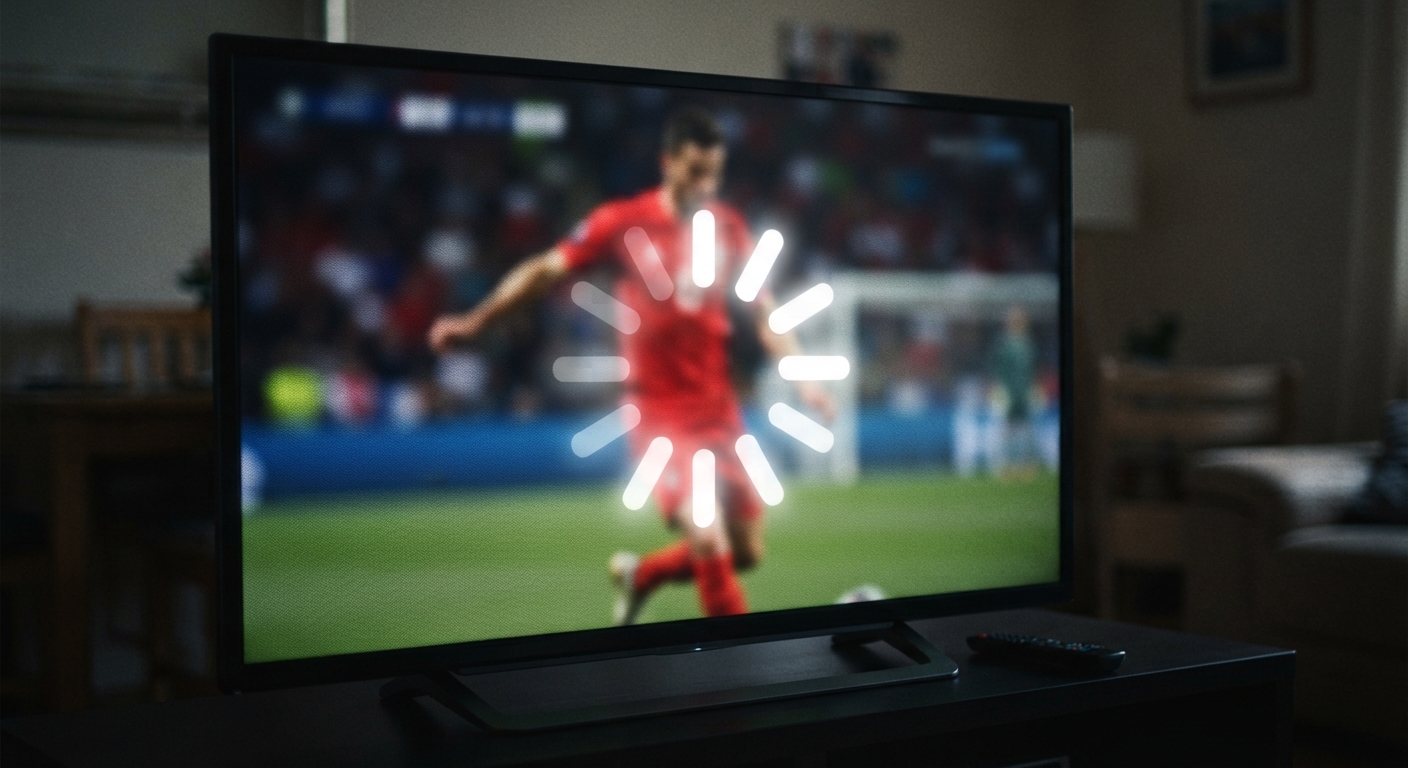
A stream that freezes during a close game or a key scene can ruin the moment. An iptv buffering fix may be as simple as improving Wi-Fi, but slow playback can also come from an app, device, or individual stream.
Start by checking how widely the problem occurs. Does one channel pause, or do all streams buffer on every device? That quick comparison can point you toward the right fix.
The checks below cover your connection, home network, device, app, and service provider. Use a legitimate IPTV subscription and supported apps, and change one thing at a time so you can see what helps.
Pinpoint What Is Causing IPTV Buffering
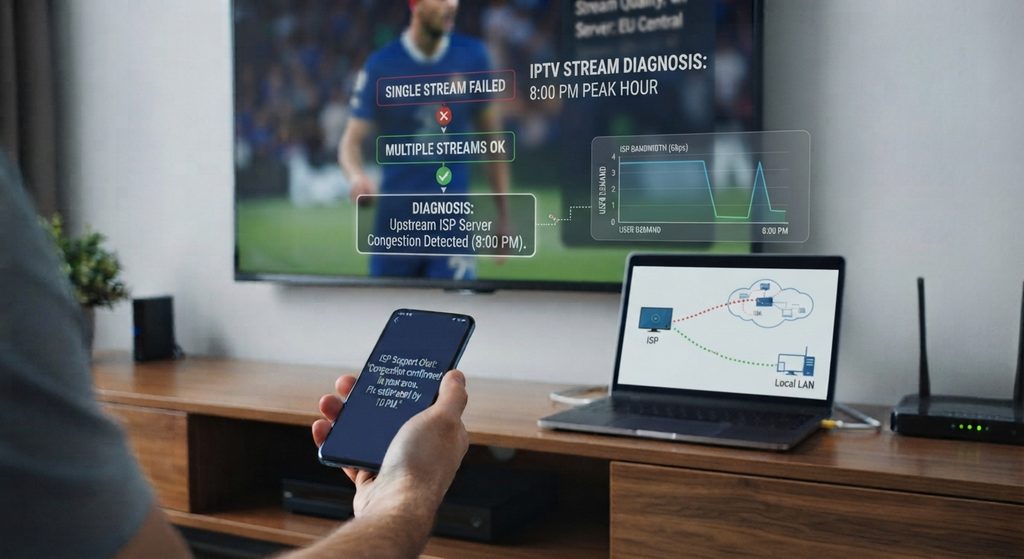
Before changing router settings or buying new equipment, look for a pattern. A few quick tests can show whether buffering affects one stream, one device, or your whole home connection.
Check whether one stream or all content buffers
Try another channel or an on-demand title, then return to the stream that paused. If other content plays smoothly, the issue may be limited to that stream rather than your internet connection.
Notice whether the problem affects one channel, several channels, or everything you watch. This detail helps you avoid changing your home network when only one stream seems affected.
Some channels also broadcast at higher bitrates or frame rates than others, especially live sports or major broadcasts. A high-demand feed can expose a weak link sooner than a standard channel, even when your connection feels fine during normal browsing.
Compare devices and apps
If possible, play the same stream in the same app on another compatible device. Smooth playback there points toward an issue with the original device or its app.
You can also test the same stream inside a different supported player app on the same device if your service allows it. Comparing two apps on the same screen helps separate app-level player quirks from hardware or network problems.
Check a few other household apps or websites, too. If they load slowly or lose connection, the problem may reach beyond IPTV and affect your home network or internet service.
Test the connection where you watch
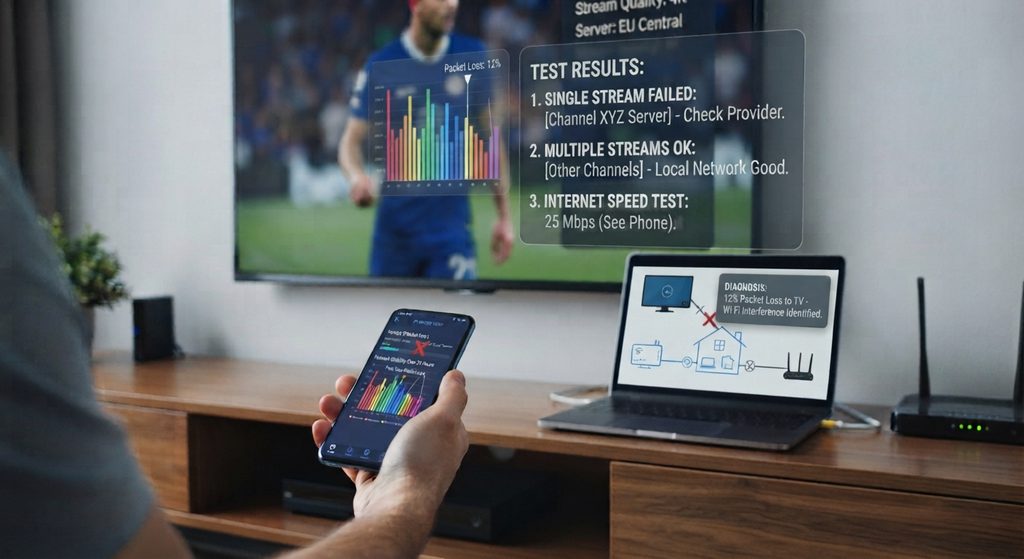
Run a reputable speed test near your TV or streaming device, ideally while buffering is happening. A test beside the router may show a better result than one in the room where you watch.
Speed can change with Wi-Fi signal strength, household use, and the stream’s own requirements. There isn’t one speed figure that guarantees smooth playback for every service, device, or picture quality.
Pay attention to consistency as well as the headline number. A connection that jumps up and down or drops packets during peak hours can cause stuttering even when a quick test looks fast.
Improve Your Connection for an IPTV Buffering Fix
A strong internet plan won’t help much if the streaming device gets a weak or crowded connection. Test your network setup before upgrading your plan or replacing your router.
Test Ethernet before changing your plan
If your device and router have Ethernet ports, connect them with a cable and test playback. Wired playback avoids Wi-Fi signal issues and can help show whether wireless coverage is the weak link.
If your streaming stick or TV lacks a built-in Ethernet port, check whether a supported wired adapter is practical for your setup. Even a temporary cable test can tell you right away whether wireless interference is the real culprit.
Compare the wired result with your usual Wi-Fi playback under similar conditions. If Ethernet works better, focus on your Wi-Fi setup before considering a faster internet plan as part of an iptv buffering fix.
Strengthen Wi-Fi near the TV
Place the router in an open, central spot when you can. Walls, cabinets, and large appliances between the router and streaming device can weaken the signal.
Keep routers away from cordless phones, baby monitors, thick concrete or metal barriers, and crowded nearby wireless gear where possible. Physical obstructions often explain why a TV in another room struggles while a phone right next to the router loads fast.
Test both Wi-Fi bands if your router offers them. The 5 GHz band can provide higher speeds nearby, while 2.4 GHz often reaches farther; the better choice depends on your room and signal when working toward an iptv buffering fix.
Reduce network congestion
Pause large downloads, cloud backups, or game updates as a test. Ask others at home to pause high-bandwidth activities briefly, then check whether your stream improves.
Background syncing on computers, phones, and consoles often runs quietly without anyone noticing. Stopping heavy transfers for a few minutes gives you a cleaner baseline for live playback.
If playback gets smoother when fewer devices are online, congestion may be part of the problem. You can then look at when the slowdowns happen and which activities overlap with viewing as part of your iptv buffering fix.
Fix Your Streaming Device or IPTV App
If other devices and apps work well, focus on the device you use for IPTV. Start with basic checks before clearing data, resetting equipment, or buying anything.
Restart the app, device, and network gear
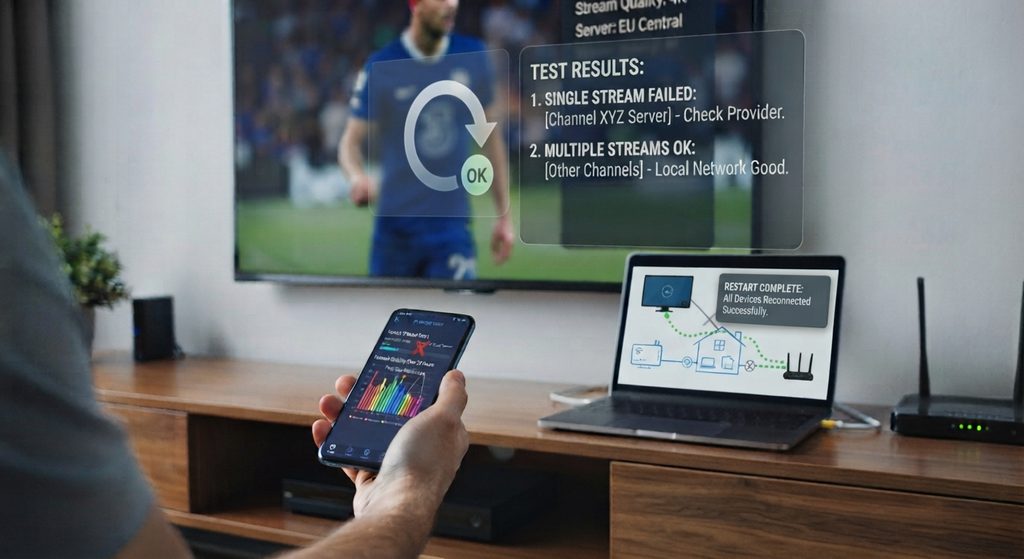
Close the IPTV app, then restart the streaming device. Give it time to reconnect to the network before opening the app and testing playback.
Force-closing a stalled app clears temporary playback states that sometimes stay stuck in memory. A full device restart then resets background processes that might be slowing down video decoding.
If the issue remains, restart the router and modem as a quick iptv buffering fix. Power them off, wait briefly, then turn them back on and allow the connection to return before testing again.
Update the app and device software
heck the device’s official settings or app store for updates to the IPTV app and system software. Older versions can cause playback or compatibility problems.
Software updates sometimes patch decoder bugs, improve network handling, or fix compatibility issues after a system update. Keeping both the operating system and the app current reduces avoidable glitches as part of an iptv buffering fix.
Install updates only through official channels. If buffering began after an update, note the version and timing; that information can help the provider’s support team investigate.
Check storage, background apps, and playback quality
Close apps you aren’t using, and check available storage if your device provides that option. A device with limited free space or many active apps may struggle to run playback smoothly.
Streaming devices rely on free memory and storage space for smooth operation and temporary buffering. When storage gets nearly full or too many apps stay open in the background, playback can stutter or lag—making a quick cleanup an effective iptv buffering fix.
If the IPTV app or service offers a lower stream-quality setting, test it briefly. If that reduces interruptions, the issue may relate to connection capacity or device performance at higher quality.
Adjust playback buffer or decoder options carefully
Some supported IPTV players include buffer size or video decoder options in their settings. Changing one setting slightly can sometimes help a stream handle brief network hiccups.
Avoid turning every experimental toggle on at once. If you change a buffer or decoder setting, test one adjustment at a time as part of an iptv buffering fix, and keep track of what you changed so you can switch back if playback gets worse.
Tell a Service Issue from a Home-Network Issue
Home troubleshooting has limits. If the problem follows one stream across devices while other content plays well, the service provider may need to check its side as part of a thorough iptv buffering fix.
When a single channel freezes or drops quality on your living room TV, your phone, and a tablet at the exact same time, the bottleneck is rarely inside your home. Your home router and internet connection do not single out one broadcast while delivering every other stream at full speed. In those moments, the delay usually comes from the source feed, an overloaded server handling that channel, or routing congestion between the provider and your region—meaning an iptv buffering fix on your end won’t resolve an upstream source delay.
Conversely, if every channel struggles alongside video calls, web browsing, or other streaming apps, your local setup is the likely culprit. Paying attention to that distinction saves hours of unnecessary router reboots, cable swaps, and settings adjustments that cannot repair an upstream broadcast issue.
Another helpful clue is how quickly playback recovers when you switch channels. If changing to another live channel restores smooth video immediately, while returning to the original channel brings back the exact same spinning wheel, the problem is tied to that specific stream rather than your Wi-Fi signal or streaming device.
Live sports and major prime-time broadcasts are especially prone to upstream strain because thousands of viewers tune in to the same feed simultaneously. Even a fast fiber connection at home cannot compensate if the upstream server delivering that particular event is running at capacity. Recognizing when an interruption sits outside your control lets you switch to an alternate feed, wait briefly for server load to ease, or report accurate details to support to guide a real iptv buffering fix instead of changing settings that already work well. Knowing when to step back and let server congestion clear is just as important as any local iptv buffering fix when a live broadcast is overloaded.
Track affected streams and times
Note which channels or titles buffer and when the issue occurs. Record whether it happens every time or only at certain hours, and whether other devices show the same problem.
Evening hours, weekends, and major live events often bring heavier traffic across networks and streaming services. Spotting a time-of-day pattern helps you avoid blaming your gear for a broader slowdown—and guides a smarter iptv buffering fix.
A pattern limited to one stream is useful evidence. Repeated router changes are unlikely to help if other content works normally on the same device and connection.
Check the provider’s service information
Look for service announcements through the provider’s official website, app, or published support channel. If there’s no notice and the issue continues, contact support using its listed contact details to find the right iptv buffering fix.
Having clear facts ready makes support conversations much faster and more productive. Mentioning what already worked or failed saves you from repeating basic steps.
Share your device model, app version, affected streams, and the times you noticed buffering. Include the tests you’ve completed—such as trying another device or using Ethernet—so their team can pinpoint an effective iptv buffering fix right away.
Avoid risky fixes and unsupported apps
Don’t install unknown apps or change security settings based on advice from unofficial troubleshooters. Never share your account details with people who aren’t part of the provider’s official support team.
Unverified apps and random tweaks can introduce security risks, instability, or unexpected problems on your device. Stick to official app stores, supported software, and safe default security settings when looking for a safe iptv buffering fix. Many online forums and video guides promise instant buffering fixes through modified players, custom scripts, or hidden system toggles, yet those shortcuts often create crashes, broken updates, or privacy exposure without solving the underlying network issue.
Be equally cautious with third-party DNS lists or aggressive network tools unless you understand how they affect your device and home router. Changing core network settings without keeping track of the original values can leave other household apps unable to connect properly—undermining a reliable iptv buffering fix for the rest of your home.
A VPN can change how your traffic reaches a service and may affect speed or routing. Test one only when it’s lawful, allowed by your service, and suitable for your network. If enabling a VPN slows your connection down further, turn it off right away so you can measure your baseline playback accurately and decide on the best iptv buffering fix.
Keep IPTV Playback Smooth Over Time
A brief record of what happens can make recurring issues easier to solve. It can also help you avoid repeating tests that didn’t make a difference when working on an iptv buffering fix.
When interruptions show up once in a while, it is easy to forget which channel froze, which device you were using, or whether someone else in the house was uploading large files at that exact moment. Writing down a few quick details right after a hiccup gives you a much clearer picture than relying on memory later.
Simple habits also prevent unnecessary trial and error. If testing a wired connection or switching Wi-Fi bands already gave you a clear answer, keeping a short note reminds you where the real bottleneck sits so you do not keep changing unrelated settings before a major broadcast—making your long-term iptv buffering fix much faster.
Over time, a small checklist before big live events—such as checking available storage, closing background apps, and confirming your network connection—helps keep playback steady without last-minute rushing. Even a few minutes of routine maintenance between viewing sessions can serve as a reliable iptv buffering fix when you want to watch without interruption.
Keep notes on recurring interruptions
Record the device, stream, time, and whether you used Wi-Fi or Ethernet. Add any changes you made, such as restarting the router or updating the app.
Even a simple log over a week or two can show whether problems cluster around one device, one room, or one time of day. That clarity helps you make smarter decisions instead of guessing when looking for an iptv buffering fix.
These details can help reveal a pattern and give support staff a clear starting point. Even a few short notes are more useful than trying to recall every test later.
Recheck playback after network changes
Test your stream again after moving the router, adding mesh equipment, changing Wi-Fi bands, or connecting a new device. Keep other conditions as similar as possible so you can compare results fairly and confirm whether your iptv buffering fix actually worked.
Testing right after a change—and again later during normal household use—gives a more realistic picture. A single smooth minute right after a reboot does not always prove the problem is gone.
If performance changes, note what was different. That makes it easier to tell whether the adjustment delivered a lasting iptv buffering fix or whether the improvement happened by chance.
Know when to contact support or replace equipment
Contact your IPTV provider when its service appears to be the source of the problem. Reach out to your internet provider if connection trouble affects other apps, devices, or websites too.
If several devices and apps in your home drop connection or slow down at the same time, your home internet connection or modem/router setup needs attention first. Fixing a weak home connection benefits everything online, not just IPTV.
Consider replacing a router or streaming device only after testing your current setup and checking its limits—a purchase won’t fix a stream-specific issue, a weak internet connection reaching the home, or replace a genuine iptv buffering fix.
Quick FAQ
Does restarting the router log me out of my IPTV app?
No. Restarting your router refreshes your network connection and does not clear your IPTV app login or playlist.
Should I clear cache or clear data first?
Start with restarting the app and device, and avoid wiping saved login or playlist data unless the provider recommends it after basic checks.
Why does one channel buffer while others work fine?
A single channel or feed can experience local stream or server trouble even when your home internet and other channels work normally.
Can a weak Wi-Fi signal cause buffering even with a fast internet plan?
Yes. If the signal reaching your TV or streaming device is weak or crowded, your device may not receive steady data even when your overall internet plan is fast.
Should I restart my device before or after checking another channel?
Check another channel or app first if you want to spot a pattern quickly, then restart the app and device if the issue looks local to your setup.
Key Takeaways for a Reliable IPTV Buffering Fix
Start with the simplest checks: try another stream, compare devices, and test the connection where you watch. Then compare Ethernet with Wi-Fi, restart the app or device, and check for updates.
Change one thing at a time so you know what improved playback. If buffering continues, contact the provider best suited to the issue and share your notes. Clear details can help turn a frustrating freeze into a focused iptv buffering fix.