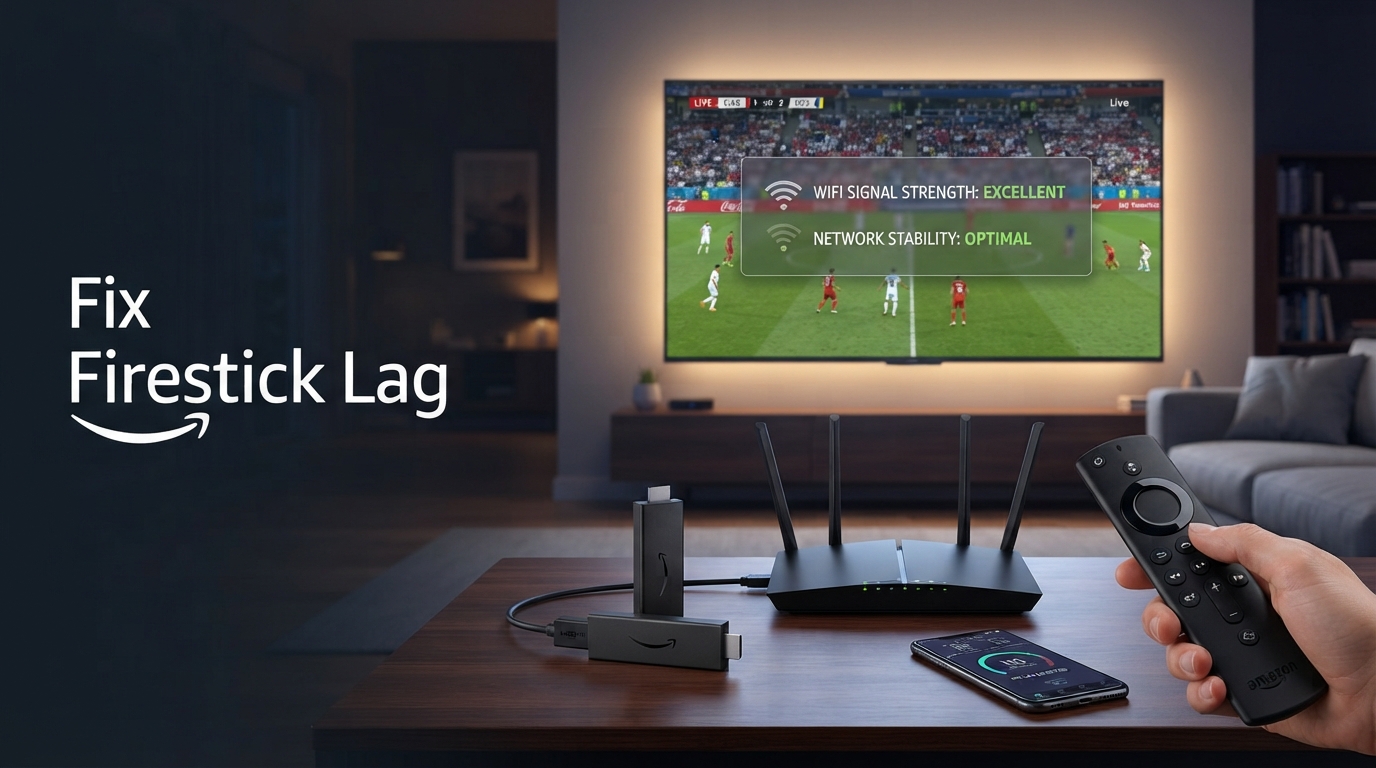
Fix Firestick Lag on Home Wi-Fi for Smoother Streaming
A show pauses to buffer, the picture turns blurry, or the Fire TV Stick takes too long to open an app. When other devices seem fine, it can be hard to tell why you need to fix Firestick lag on home Wi-Fi.
Lag can come from a weak signal, busy home network, app trouble, or a slow Fire TV Stick. The right fix depends on which one is causing the delay, so learning how to fix Firestick lag on home Wi-Fi systematically saves both time and frustration.
Start with a few quick checks, then test your Wi-Fi, apps, and device. Results can vary with your router, Fire TV model, internet plan, and home layout when you try to fix Firestick lag on home Wi-Fi.
Diagnose What Causes Firestick Lag on Home Wi-Fi
Finding out where the lag starts can save time and help you avoid changing settings that aren’t part of the problem. First, note what the delay looks like and when it happens before you attempt to fix Firestick lag on home Wi-Fi.
Tell buffering apart from slow menus
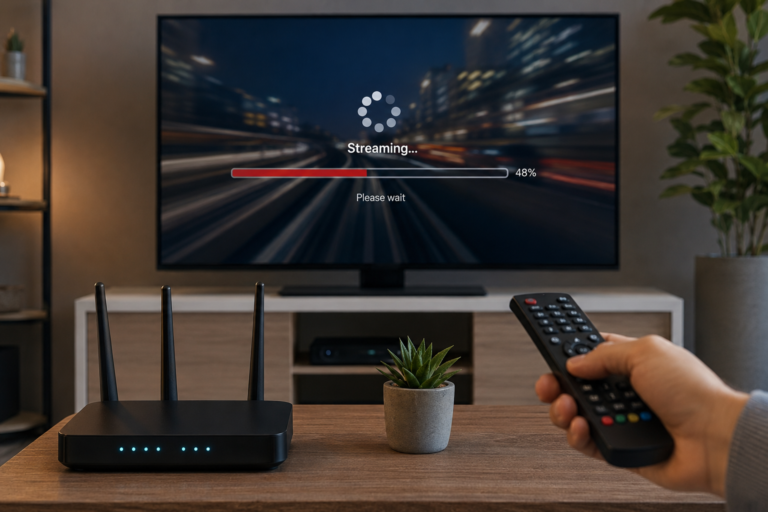
Buffering, frequent pauses, or a drop in picture quality can point to a streaming or network problem. Slow menus, delayed remote response, and apps that take a long time to open may point to a device or software issue as you try to fix Firestick lag on home Wi-Fi.
Notice whether the problem happens in one app or across several. If one service is slow but other apps play normally, focus on that app before changing your network setup to fix Firestick lag on home Wi-Fi.
Compare the Fire TV Stick with other devices
Check a phone, computer, or another streaming device in the same room. If several devices struggle at once, your home Wi-Fi or internet connection may be involved; if only the Fire TV Stick has trouble, look more closely at its signal, apps, and software to fix Firestick lag on home Wi-Fi.
A speed test can offer a useful clue, but it doesn’t give the whole picture. Results may change with the test device, its location, and current network traffic while you work to fix Firestick lag on home Wi-Fi.
Check when slowdowns happen during the day
Pay attention to whether playback stutters at specific hours, such as weekday evenings or weekend sports broadcasts. Time-of-day patterns help you judge whether local network load affects your effort to fix Firestick lag on home Wi-Fi.
Comparing a quiet morning test against a busy evening stream gives you practical context. That simple habit makes it easier to fix Firestick lag on home Wi-Fi without guessing.
Fix Firestick Lag on Home Wi-Fi by Improving Signal
A weak signal can cause buffering even when your internet plan is fast enough. Check the Fire TV Stick’s connection and make a few placement tests before buying new equipment to fix Firestick lag on home Wi-Fi.
Check signal strength and device placement
Open the Fire TV network settings and select your connected Wi-Fi network to view its status or signal details. Menu names can differ by model and software version when you check how to fix Firestick lag on home Wi-Fi.
If the signal is weak, try moving the router to an open, raised spot closer to the TV. Thick walls, closed cabinets, and nearby electronics can affect wireless performance, so even a small change in router position may help you fix Firestick lag on home Wi-Fi.
Test your router’s Wi-Fi bands
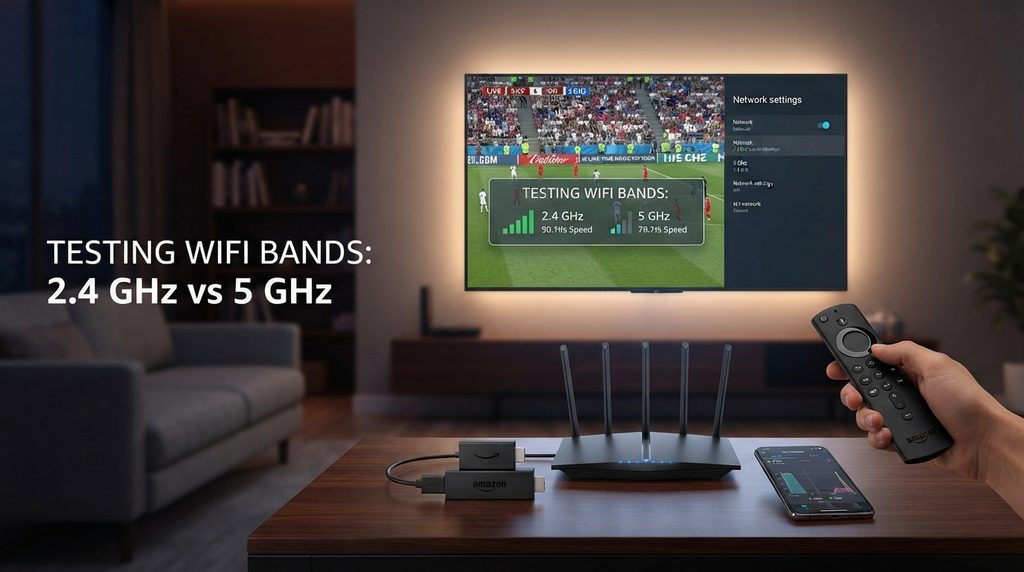
Many routers offer 2.4 GHz and 5 GHz networks, and some newer models even add a 6 GHz band for compatible devices. The 2.4 GHz band can reach farther through walls, floors, and furniture, while 5 GHz often delivers higher throughput at shorter distances with fewer physical barriers.
Try the available network options directly from the Fire TV Stick’s location instead of assuming one band will always be faster. Router band names, security modes, and channel controls vary widely by manufacturer, so check your router maker’s instructions before changing channels or adjusting other wireless settings.
How 2.4 GHz, 5 GHz, and 6 GHz behave in real homes
Understanding the trade-offs between wireless bands helps explain why a connection that looks strong on paper can still stumble during playback. Each frequency band carries signals differently through living spaces, and each comes with its own strengths and limitations depending on your home layout.
2.4 GHz: longer reach, more crowded airwaves
The 2.4 GHz band uses lower frequencies that bend and penetrate obstacles more easily than higher-frequency bands. If your router sits in another room, downstairs, or behind a hallway wall, 2.4 GHz may maintain a steadier link where a higher band drops to a weak signal.
The catch is that 2.4 GHz has fewer non-overlapping channels and shares space with many everyday household devices. Baby monitors, wireless cameras, microwaves, Bluetooth accessories, and neighboring routers can all add interference on 2.4 GHz, capping peak speeds even when signal bars look decent.
5 GHz: faster speeds at shorter range
The 5 GHz band generally supports wider channels and faster data transfer rates, which can help when streaming high-definition or 4K video. Because it often has less crowding from basic household appliances than 2.4 GHz, it frequently performs well when the streaming stick is in the same room or close to the router.
However, 5 GHz signals lose strength faster when passing through thick walls, large appliances, or dense building materials. If the Fire TV Stick sits too far away or behind heavy obstructions, throughput on 5 GHz can drop sharply or fluctuate.
6 GHz: high capacity for supported setups
On routers and devices that support Wi-Fi 6E or newer standards, the 6 GHz band offers extra spectrum and minimal legacy interference. Its range behavior is similar to or even shorter than 5 GHz, meaning line-of-sight or close proximity matters even more.
Not every streaming stick or router supports 6 GHz, and band steering features can sometimes shuffle clients unexpectedly. Checking your specific hardware specifications avoids chasing settings your device cannot use.
Practical ways to compare bands on your Fire TV Stick
Testing wireless bands works best when you keep the rest of your environment consistent. Changing only the Wi-Fi network selection gives you a clear comparison of how your streaming stick responds in its actual spot behind or near the TV.
Switch networks and watch real playback
Open the network menu on your Fire TV Stick, connect to one band at a time, and run a real test rather than relying solely on a single number. Start a show or live stream you normally watch and observe how quickly it loads, whether resolution stays steady, and whether pauses occur over several minutes.
Give the connection a brief moment to settle after switching bands before judging the result. Adaptive video players often start at lower quality and step up once throughput stabilizes.
Watch out for band steering and identical network names
Some routers combine 2.4 GHz and 5 GHz under a single Wi-Fi name (SSID) and decide automatically which band a device joins. While convenient for general browsing, automatic band steering can occasionally place a streaming stick on a weaker or slower band than you expect.
If your router lets you view connected clients or separate band names, check which band the Fire TV Stick is actually using when lag appears. Testing distinct network names—when supported by your router—makes it easier to see whether one band holds a cleaner connection.
Avoid random channel changes without a reason
Changing wireless channels manually can sometimes help in dense apartment buildings where many neighbors overlap on the same channel. Still, random channel tweaks without checking your router’s guidance or interference conditions can easily make stability worse.
Stick to standard, supported settings first, change one option at a time, and note what happens after each step. Keeping a simple record prevents guesswork if you need to return to your original configuration.
Use the HDMI extender and check TV mounting
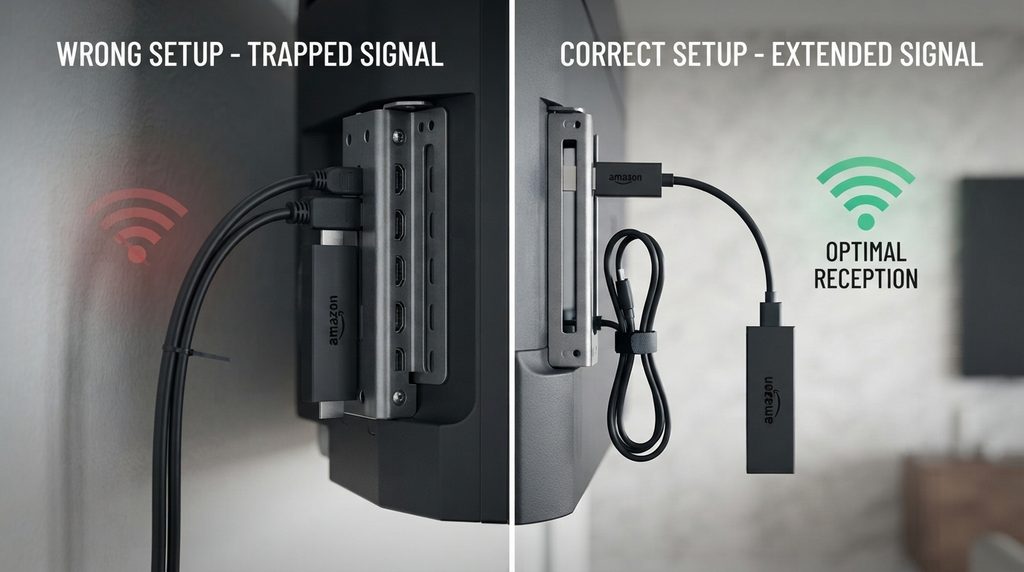
Plugging a Fire TV Stick directly into a recessed HDMI port behind a large television can block wireless reception. Using the included or a compatible HDMI extender cable moves the stick slightly away from metal and glass surfaces so you can fix Firestick lag on home Wi-Fi.
Avoid wrapping cables tightly behind the screen or trapping the streaming stick against metal mounts. A cleaner physical layout is a simple way to fix Firestick lag on home Wi-Fi without spending extra money.
Consider Ethernet or a router move
Some Fire TV Stick models work with compatible Ethernet adapters. A wired link can help you test whether Wi-Fi is the source of the problem, but check your exact model and the adapter’s requirements first to fix Firestick lag on home Wi-Fi.
You can also move the router temporarily and retest before spending money. Check that your router has the needed port and review return terms before buying an adapter to fix Firestick lag on home Wi-Fi.
Reduce Network Congestion That Can Interrupt Streaming
A good signal can still struggle when many devices use the network at once. Try a short test during a quiet period to see whether busy household traffic is part of the issue when you fix Firestick lag on home Wi-Fi.
Pause high-demand activity
Temporarily pause large downloads, cloud backups, or other heavy network use while you stream. If the Fire TV Stick improves, repeat the test at another time to see whether the problem mainly appears during busy hours when you fix Firestick lag on home Wi-Fi.
This test helps identify a cause; it doesn’t mean you must keep every other device offline. If congestion is frequent, review your router’s device and traffic settings before making a lasting change to fix Firestick lag on home Wi-Fi.
Restart your modem and router
Restarting network equipment can clear temporary connection problems. Follow your internet provider’s or router maker’s instructions, then wait for the internet connection to return fully before testing the Fire TV Stick to fix Firestick lag on home Wi-Fi.
A restart is different from a factory reset. A factory reset can erase custom network settings, so don’t use it as a routine troubleshooting step to fix Firestick lag on home Wi-Fi.
Separate smart home and guest devices
Many homes connect dozens of smart plugs, cameras, phones, and tablets to the same wireless network. Grouping secondary devices or checking connected client lists can help you see what competes for bandwidth as you fix Firestick lag on home Wi-Fi.
Keep your main streaming connection straightforward and avoid unnecessary network bridges or repeaters that add latency. Clean network organization supports a steady effort to fix Firestick lag on home Wi-Fi.
Review router rules and limits
Parental controls, device schedules, guest network rules, or quality-of-service settings may affect a Fire TV Stick. Check the router’s documentation to see whether any rules apply to the device while you fix Firestick lag on home Wi-Fi.
If a setting is unfamiliar, ask your internet provider or router maker before changing it. Avoid turning off network security as a shortcut to fix Firestick lag on home Wi-Fi.
Fix Firestick Software and App Problems
When other devices work well on the same Wi-Fi, focus on the Fire TV Stick and the apps installed on it. Start with low-risk fixes and test after each change to fix Firestick lag on home Wi-Fi.
Restart the Fire TV Stick and check for updates
Restarting the device can clear a temporary slowdown. Use the restart option in Fire TV settings, or follow Amazon’s current instructions for your model when you fix Firestick lag on home Wi-Fi.
Then check for a Fire TV software update in settings and install any available update. Menu labels vary across versions, so look under device or software settings if the wording differs while you fix Firestick lag on home Wi-Fi.
Clear an app’s cache and check for updates
If one app is slow while others work, clear that app’s cache in the Fire TV app settings. Then check for an app update and reopen it to fix Firestick lag on home Wi-Fi.
Clearing app data is a different step and may remove sign-in details or saved preferences. Check the app’s instructions before using that option, especially if you don’t have your login information handy to fix Firestick lag on home Wi-Fi.
Free up storage space
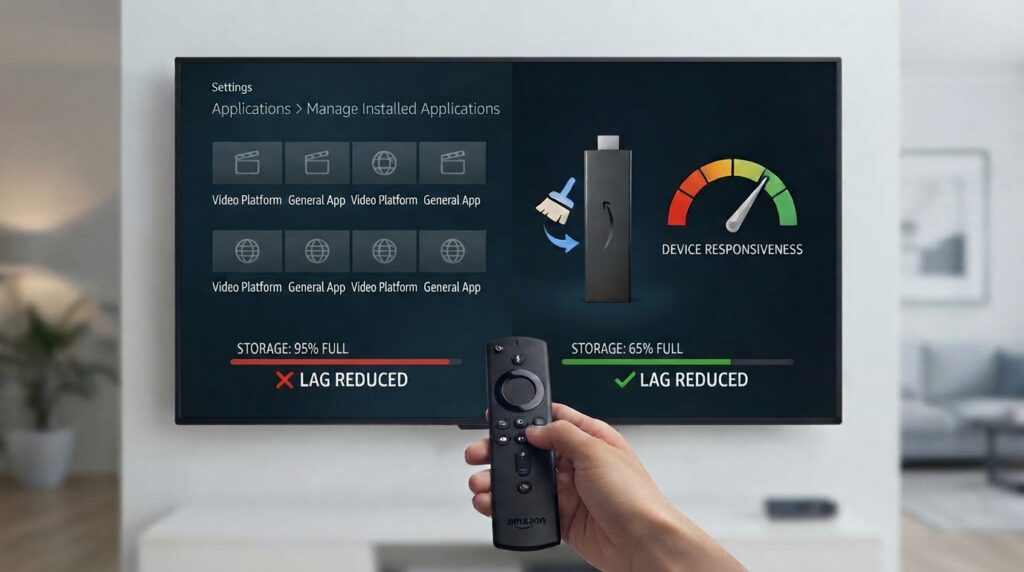
A Fire TV Stick with little free storage may feel sluggish when opening apps or moving through menus. Review installed apps and remove ones you no longer use to fix Firestick lag on home Wi-Fi.
Storage cleanup won’t fix a weak Wi-Fi signal, so check whether the symptom is slow navigation or streaming trouble. Retest the device after removing an app to fix Firestick lag on home Wi-Fi.
Limit background processes and unused apps
Apps left running in the background or bloated add-ons can consume memory and slow down older hardware. Force-stopping stuck apps and keeping your installed list lean helps you fix Firestick lag on home Wi-Fi on everyday streaming sticks.
Give the device a moment to settle after closing heavy apps before starting a long stream. That small habit can make a noticeable difference when you fix Firestick lag on home Wi-Fi.
Know When to Contact Support or Replace Equipment
If basic checks don’t help, the pattern of the problem can point you to the right support team. Write down which apps are affected, when lag occurs, how the Fire TV Stick connects, and what you’ve already tried to fix Firestick lag on home Wi-Fi.
Contact the right support team
Contact Amazon support for lag across the Fire TV Stick, the app provider for trouble limited to one app, or your internet provider if other devices also have connection problems. Use current support instructions, since menus and service steps can change as you fix Firestick lag on home Wi-Fi.
Your notes can help support staff narrow down the cause. Include any signal changes, restarts, updates, or network tests you completed while trying to fix Firestick lag on home Wi-Fi.
Check compatibility before buying gear
A new router, Ethernet adapter, or Fire TV Stick may help if testing points to faulty, outdated, or incompatible equipment. Before buying, check the exact Fire TV model, adapter compatibility, router details, and return policy to fix Firestick lag on home Wi-Fi.
A newer device or faster internet plan won’t automatically remove lag. Confirm what is causing the problem first, then replace only the equipment that fails your tests to fix Firestick lag on home Wi-Fi.
Avoid unnecessary upgrades without testing
Buying expensive networking hardware before ruling out a single buggy app or crowded Wi-Fi channel often leads to disappointment. Test step by step so every purchase has a clear reason when you fix Firestick lag on home Wi-Fi.
Keep receipts and verify return windows in case a hardware change does not solve your specific streaming bottleneck. Careful testing keeps you grounded as you fix Firestick lag on home Wi-Fi.
Get Back to Smoother Streaming
Start by separating buffering from slow menus, then compare the Fire TV Stick with other devices. Improve its Wi-Fi signal, test for network congestion, and check the app or device software if the connection seems sound to fix Firestick lag on home Wi-Fi.
Change one thing at a time and retest. That makes it easier to spot what worked and keeps you from replacing equipment before you know whether the cause is your Wi-Fi, an app, or the Fire TV Stick when you fix Firestick lag on home Wi-Fi.
Frequently Asked Questions (Q&A)
How do I know if I need to fix Firestick lag on home Wi-Fi or if it is a single app issue?
The fastest way to tell is by opening a second app and checking how playback behaves right away. If one streaming app buffers or crashes while other apps play smoothly on the same connection, focus on clearing that app’s cache and checking for updates before you change router settings to fix Firestick lag on home Wi-Fi.
If several apps lag at the same time, test a phone or laptop in the same room. When multiple devices slow down together, local wireless congestion or network traffic is more likely to blame than a single app, making it clearer where to focus when you fix Firestick lag on home Wi-Fi.
Should I use the 2.4 GHz or 5 GHz Wi-Fi band to fix Firestick lag on home Wi-Fi?
Both bands can help depending on distance and obstacles, so test each one directly from the spot where your television sits. A 5 GHz connection often provides faster throughput at shorter range with fewer barriers, while 2.4 GHz can sometimes hold a steadier link through walls or furniture when you fix Firestick lag on home Wi-Fi.
Avoid assuming one band will always win without checking real playback. Switch between the options in your network menu, give the stream a moment to stabilize, and keep whichever band gives you fewer pauses as you fix Firestick lag on home Wi-Fi.
Does clearing app data delete my logins and saved settings?
Yes, clearing an app’s data is a heavier reset than clearing its cache and can remove sign-in details, profiles, or local preferences. Start by clearing only the cache in your Fire TV app settings first, then reopen the app to see if that helps you fix Firestick lag on home Wi-Fi.
Only move to clearing app data if cache clearing and restarting the device do not resolve the problem. Make sure you have your account username and password handy before selecting that option so you do not get locked out while trying to fix Firestick lag on home Wi-Fi.
Can a factory reset fix Firestick lag on home Wi-Fi permanently?
A factory reset erases local settings and installed apps, which can clear stubborn software glitches on a streaming stick, but it will not fix a weak Wi-Fi signal or a crowded home network. Treat a factory reset as a last resort rather than a routine step when you fix Firestick lag on home Wi-Fi.
Before resetting anything, try simpler changes like moving the router, pausing heavy downloads, restarting your modem and router, or freeing up storage space. Testing one adjustment at a time helps you fix Firestick lag on home Wi-Fi without wiping your device unnecessarily.
When should I buy a new router, Ethernet adapter, or Fire TV Stick?
Only consider buying new gear after basic troubleshooting points clearly to a hardware limit, incompatible setup, or aging equipment. If signal strength is poor behind a thick wall or TV, an HDMI extender, router move, or compatible Ethernet adapter may help you fix Firestick lag on home Wi-Fi.
Check model compatibility and return policies before ordering any accessory so you are protected if the result disappoints. Careful testing ensures you spend money on what actually helps you fix Firestick lag on home Wi-Fi.