Android TV Streaming Setup: 7 Proven Steps for Smooth Playback
Setting up a home entertainment system on a modern television should feel effortless, yet many viewers run into confusing menus, playback hiccups, and sluggish interfaces right after unboxing a new device. A well-planned Android TV Streaming Setup transforms your living room screen into a fast, responsive media center capable of handling live broadcasts, on-demand libraries, and crisp high-definition streams without constant buffering. Whether you are configuring a brand-new smart television, an external streaming box, or an HDMI stick, taking the time to optimize your hardware and software settings makes a dramatic difference in everyday performance.
This complete Android TV Streaming Setup guide walks through every stage of the process—from network preparation and application installation to playlist configuration, layout customization, and ongoing maintenance. By following a structured workflow, you can avoid common setup pitfalls, keep your home screen free of clutter, and ensure reliable playback every time you pick up the remote.
Quick Overview of the Setup Process
Before diving into individual settings, reviewing the big picture helps you stay organized and ensures no critical step is skipped during your Android TV Streaming Setup.
| Phase | Core Focus | Estimated Time | Key Goal |
| 1. Hardware & Network Prep | Physical connections & Wi-Fi/Ethernet | 5–10 minutes | Establish a fast, low-latency internet link |
| 2. System & Account Basics | OS updates, Google account & permissions | 5–10 minutes | Ensure security patches and app access |
| 3. Player Installation | Installing a reliable media player | 3–5 minutes | Choose an app suited to your hardware |
| 4. Source Configuration | Adding M3U URLs or Xtream credentials | 5 minutes | Load live channels, VOD, and metadata cleanly |
| 5. EPG & Layout Tuning | Time sync, favorites, and group hiding | 10 minutes | Create an intuitive, clutter-free guide |
| 6. Video & Audio Optimization | Display resolution, refresh rate, and codecs | 5 minutes | Eliminate judder, audio delay, and scaling issues |
| 7. Routine Maintenance | Cache clearing and periodic playlist refresh | 2 minutes | Preserve long-term speed and stability |
Step 1: Prepare Your Hardware and Network Connection
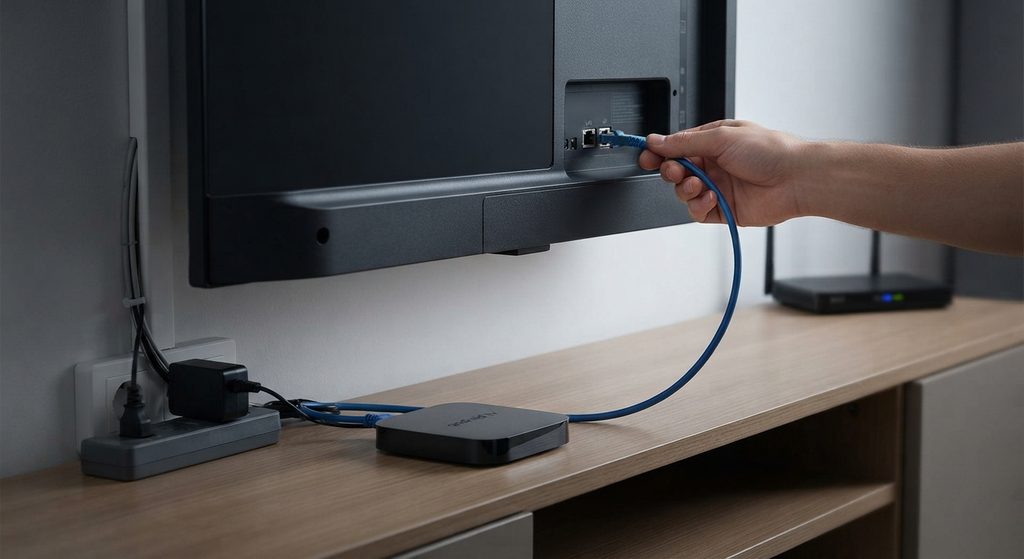
Every reliable Android TV Streaming Setup begins before you even open a streaming application. Video streams demand steady bandwidth and low packet loss; if your connection fluctuates or your television sits far from your wireless router, even the best streaming software will struggle to maintain smooth playback.
- Choose Wired Ethernet Whenever Possible: If your television or streaming box includes an Ethernet port—or supports a USB-to-Ethernet adapter—connect a network cable directly to your router. A wired connection eliminates wireless interference from neighboring apartments, walls, and household appliances, keeping latency consistently low during peak evening hours.
- Use the 5 GHz Wi-Fi Band for Wireless Setups: When running a cable across the room is impractical, connect your device to your router’s 5 GHz network rather than the older 2.4 GHz band. While 2.4 GHz travels farther through thick walls, 5 GHz delivers significantly higher throughput and far less congestion, which is essential for Full HD and 4K streams.
- Position Streaming Sticks Away from Interference: If you use a compact HDMI streaming stick plugged into the back of a wall-mounted TV, the metal chassis of the television can block Wi-Fi signals. Using the short HDMI extender cable included in the box moves the stick slightly away from the screen and often boosts signal strength immediately.
- Check Power Delivery: Always plug external streaming boxes and sticks into a dedicated wall outlet using the manufacturer’s power adapter rather than relying on a USB port on the back of your TV. Television USB ports frequently supply insufficient amperage, causing random restarts or throttling performance during heavy decoding.
Taking five minutes to verify cables, power supply, and signal quality prevents the vast majority of mysterious buffering issues later in your Android TV Streaming Setup.
Step 2: Update System Firmware and Configure Privacy Settings
Once your device powers on and connects to the internet during an Android TV Streaming Setup, resist the urge to install third-party apps immediately. Out-of-the-box firmware on smart TVs and streaming boxes is often several months behind, missing important stability fixes, codec updates, and security patches.
- Run a Full System Update: Open Settings > Device Preferences > About > System Update and install any pending operating system updates. Restart the television once the update completes so new background services initialize cleanly for your Android TV Streaming Setup.
- Update Core System Apps via Google Play: Open the Google Play Store, select your profile icon in the top corner, and choose Manage apps & games > Updates. Updating built-in components like Android System WebView and Google Play Services ensures smooth authentication and rendering inside media players.
- Disable Unnecessary Background Telemetry: Navigate to Settings > Device Preferences > Usage & Diagnostics and turn off diagnostic reporting if you want to reduce background network chatter throughout your Android TV Streaming Setup.
- Enable Developer Options (Optional for Power Users): If you want finer control over animations and background processes, go to About, highlight Android TV OS build, and press the center select button seven times until you see confirmation that Developer Options are unlocked. Lowering window animation scales to
0.5xmakes older smart TVs feel noticeably snappier.
Completing these system adjustments creates a clean, stable foundation for your Android TV Streaming Setup before adding external media sources.
Step 3: Select and Install a Capable Media Player

Android TV stands out from closed smart TV operating systems because it supports a wide variety of dedicated media players for your Android TV Streaming Setup. Rather than settling for a basic built-in video viewer, choosing a well-supported player gives you proper program guides, hardware decoding options, and customizable layouts.
When evaluating players during your Android TV Streaming Setup, look for these essential features:
- Dual Connection Support: Compatibility with both M3U playlist links and Xtream Codes API logins so your Android TV Streaming Setup is never locked into a single format.
- Hardware Video Decoding: Support for native hardware decoders (MediaCodec) so your TV’s graphics chip handles high-bitrate video smoothly without overheating the main processor.
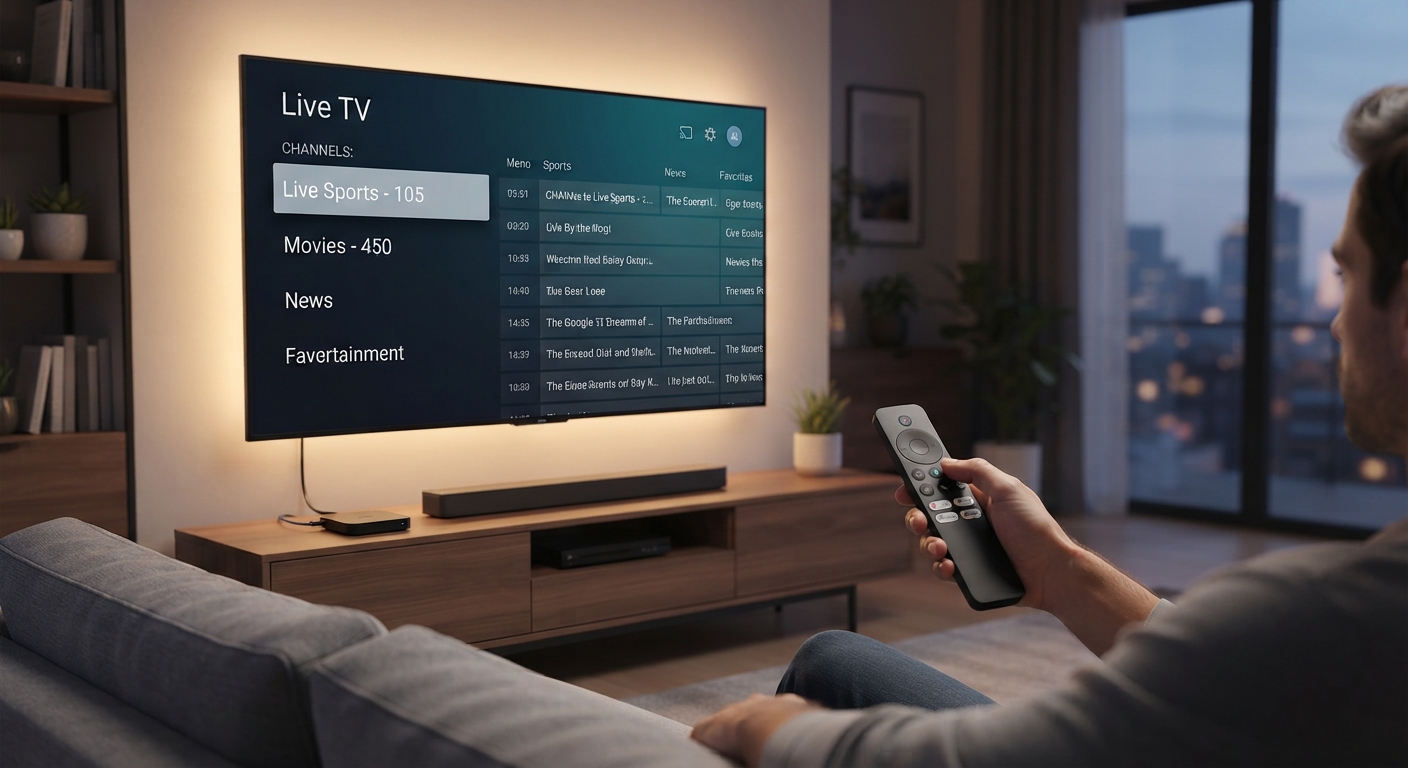
- Custom EPG Management: Built-in support for XMLTV program guides, manual time-offset adjustments, and automatic background guide updates throughout your Android TV Streaming Setup.
- Group & Channel Editing: Tools to hide unwanted categories, rename groups, and pin favorite channels to the top of your screen.
- Remote-Friendly Navigation: Large, readable typography and intuitive D-pad controls designed specifically for television remotes rather than touchscreens.
Installation Tip: Install your chosen player directly from the Google Play Store whenever available so updates arrive automatically for your Android TV Streaming Setup. If you install an official APK from a developer’s website, enable installation permissions only for the specific file manager or downloader app you use, then turn that permission back off once installation finishes.
The Google Play Store whenever available so updates arrive automatically. If you install an official APK from a developer’s website, enable installation permissions only for the specific file manager or downloader app you use, then turn that permission back off once installation finishes.
Step 4: Configure Your Playlist and Login Credentials Accurately
With your player installed, you are ready to connect your media source. This stage is the heart of your Android TV Streaming Setup, and precision matters more here than anywhere else. A single misplaced character, stray space, or wrong protocol prefix can stop channels from loading entirely.
Follow this step-by-step workflow to load your source cleanly:
- Launch the Player and Grant Storage Permissions: When opening the application for the first time, allow requested storage or media permissions. Players use local storage to cache channel logos, program guide databases, and custom settings so menus open instantaneously on future visits.
- Select Your Connection Method: Choose Add Playlist, Add User, or Xtream Codes from the welcome screen or settings menu.
- Use a Companion App for Typing: Typing a 90-character URL with an on-screen TV keyboard is tedious and error-prone. Install the Google TV app (or your TV brand’s official remote app) on your smartphone so you can copy and paste credentials directly from your phone’s clipboard onto the television screen.
- Verify Every Field Carefully:
- If using an M3U URL, confirm the full link starts with
http://orhttps://exactly as provided and contains no trailing space at the end. - If using Xtream Codes, enter the server host URL in the server box, your username in the username box, and your password in the password box without extra path suffixes.
- If using an M3U URL, confirm the full link starts with
- Assign a Descriptive Playlist Label: Name the profile clearly—such as Living Room TV or Main Setup—so you can distinguish it easily if you ever add a backup source later.
- Allow the Initial Sync to Finish: Save your entries and wait patiently while the app downloads channel groups, VOD folders, and show metadata. Avoid pressing the Home button or putting the TV to sleep mid-sync, especially on large libraries.
- Test Both Live Channels and On-Demand Video: Once loading completes, open one live broadcast and one on-demand title to verify that video starts promptly and audio stays synchronized.
Keeping a clean copy of your credentials stored securely on your phone also simplifies future updates if you ever reset your television or configure a second screen in another room.
Step 5: Organize Your Layout, Favorites, and EPG Alignment

Raw playlists often contain thousands of channels spanning dozens of countries, sports packages, and niche categories. Leaving every group visible turns everyday channel surfing into a chore. Spending ten minutes customizing your interface right after completing your Android TV Streaming Setup makes daily viewing dramatically faster for everyone in the household.
Streamline Channel Categories
Open your player’s group or playlist settings during your Android TV Streaming Setup and hide categories your household never watches. Removing unused regional folders, duplicate feeds, and irrelevant sections cuts down scrolling time and reduces memory usage inside the app. If your player allows custom sorting, move your most-watched groups—such as News, Entertainment, Movies, and Sports—to the very top of the sidebar to complete your Android TV Streaming Setup.
Build a Dedicated Favorites List
Pin your top 15 to 25 go-to channels into a single Favorites category. Having a curated list means family members and guests can jump straight to familiar channels with two clicks of the remote without memorizing which folder holds which network.
Align Your Electronic Program Guide (EPG)
An accurate TV guide makes browsing effortless during an Android TV Streaming Setup, but time-zone mismatches occasionally cause program listings to appear one or two hours early or late.
- Check that your Android TV’s system clock and time zone are set accurately under Settings > Device Preferences > Date & Time.
- If show titles still appear shifted inside your player, open the app’s EPG Settings and adjust the Time Offset (for example,
+1:00or-1:00) until the current broadcast matches the live clock. - Set your EPG refresh interval to update automatically once every 24 hours so upcoming schedules stay current without slowing down app startup throughout your Android TV Streaming Setup.
Step 6: Optimize Video, Audio, and Playback Settings
Even with a fast internet connection and clean playlist, default television picture settings can introduce subtle motion stutter or audio sync delays. Fine-tuning a few playback options completes the technical side of your Android TV Streaming Setup and ensures cinema-grade visual clarity.
Decoder Selection: Hardware vs. Software
Inside your player’s playback settings, you will typically find options for Hardware (HW) and Software (SW) decoding:
| Decoder Mode | How It Works | Best Used When |
| Hardware (HW) | Offloads video processing to the TV’s dedicated GPU chip | Default choice for smooth 1080p/4K playback and low CPU heat |
| Hardware+ (HW+) | Uses hardware acceleration with broader container compatibility | Streams play with video but missing audio on standard HW mode |
| Software (SW) | Uses the main CPU to decode video frames | Troubleshooting rare, unusual video formats on powerful boxes |
Start with Hardware mode enabled. If you ever encounter a specific stream where picture plays smoothly without sound, switching audio decoding to Software while keeping video on Hardware usually resolves the mismatch immediately.
Match Frame Rate and Resolution
- Auto Frame Rate (AFR): If your player and television support automatic frame rate switching, enable it. Live sports and European broadcasts often run at 50fps, whereas movies run at 24fps and North American broadcasts run at 60fps. Matching the TV’s refresh rate to the incoming stream eliminates subtle panning judder.
- Disable Aggressive Motion Smoothing: On your TV’s built-in picture menu, turn off heavy “soap opera effect” motion interpolation modes, which can make live broadcasts look artificial and add input lag to remote commands.
- Buffer Size Tuning: Most players allow you to choose between None, Small, Normal, or Large buffer sizes. A Normal buffer (around 2 to 4 seconds) strikes the ideal balance between fast channel switching and protection against brief Wi-Fi dips.
Step 7: Maintain Long-Term Speed and Reliability
An Android TV Streaming Setup requires very little upkeep once properly configured, but smart TVs have limited internal storage compared to desktop computers. Over months of daily use, cached channel thumbnails, temporary stream segments, and outdated guide files can accumulate and slow down navigation.
Adopt a simple bi-weekly maintenance routine to keep your Android TV Streaming Setup performing like day one:
Reboot Occasionally: Smart TVs rarely turn off completely—pressing the power button usually puts them into standby sleep mode. Performing a full restart (Settings > Device Preferences > Restart) once every two to three weeks clears stuck background processes and refreshes your network stack for a reliable Android TV Streaming Setup.Troubleshooting Common Android TV Playback Issues
Refresh Your Playlist Periodically: Every couple of weeks, trigger a manual playlist and EPG update inside your player settings. This clears out dead links, pulls in newly added channels, and keeps category names aligned with current lineups throughout your Android TV Streaming Setup.
Clear App Cache (Not App Data): If your player starts feeling sluggish or thumbnail images fail to load, go to Settings > Apps > [Your Player] > Clear Cache. Clearing cache removes temporary clutter safely while preserving all your saved login credentials, favorites, and custom group layouts. (Avoid selecting “Clear Data” unless you want to wipe the app and repeat your Android TV Streaming Setup from scratch.)
Keep Free Storage Above 20%: Android TV relies on free internal storage for smooth memory management and system updates. Uninstall pre-loaded trial apps or games you never use so your device always has plenty of breathing room.
Even a carefully configured system can occasionally run into a hiccup caused by network congestion, router hiccups, or temporary server updates. Use this quick diagnostic reference whenever something behaves unexpectedly:
- Channels Fail to Load After Setup: Double-check your URL or Xtream credentials for accidental trailing spaces or
httpvs.httpsmismatches. Confirm your internet connection is active by opening another app like YouTube briefly. - Buffering During Evening Hours Only: If playback runs smoothly all afternoon but buffers at night, your Wi-Fi channel may be congested or your ISP may be throttling streaming traffic. Switching to wired Ethernet or testing a 5 GHz Wi-Fi channel often stabilizes evening speeds.
- Audio Plays Slightly Ahead or Behind Lip Movement: Open your player’s on-screen audio menu during playback and adjust the Audio Delay / Sync Offset in 50ms increments until speech aligns naturally with the picture.
- EPG Shows “No Information”: Trigger a manual EPG update in settings and verify that your device’s system date and year are accurate. An incorrect system clock prevents XMLTV guide parsers from matching current time slots.
- App Crashes Back to the Home Screen: Force-stop the player under Settings > Apps, clear its cache, and reboot the television. If crashes persist after a system update, check the Play Store for a newer version of the player.
Frequently Asked Questions (FAQ)
1. How much internet speed do I need for a smooth Android TV Streaming Setup?
For reliable 1080p Full HD streaming, a steady download speed of at least 15 to 25 Mbps per active screen is recommended. If you plan to watch 4K Ultra HD streams or have multiple family members downloading and gaming simultaneously, aim for 50 Mbps or higher paired with a wired Ethernet or 5 GHz Wi-Fi connection.
2. Is an external Android TV box better than a built-in smart TV system?
Entry-level and mid-range smart TVs often use modest processors and limited RAM to keep retail prices down. While built-in Android TV works well for most households, dedicated streaming boxes (such as Google TV Streamer or NVIDIA Shield) typically offer faster menu navigation, stronger Wi-Fi antennas, and better long-term software updates.
3. Should I choose M3U or Xtream Codes during setup?
Both formats deliver reliable streaming when entered accurately for your Android TV Streaming Setup. M3U relies on a single playlist link that works across almost every player, whereas Xtream Codes separates the server address, username, and password to load live TV, movies, series, and EPG data through structured API endpoints. If your player supports both, Xtream Codes often organizes large libraries slightly faster.
4. Why does my playlist work on my phone but fail on my TV?
The most common reason is a minor typing difference—such as an extra space inserted automatically by the TV’s on-screen keyboard—or exceeding the maximum number of simultaneous connections allowed on your account. Make sure you close the app on your phone before testing on your television if your plan permits one active stream at a time.
5. How often should I clear cache on my Android TV?
Clearing app cache once a month—or whenever menus begin feeling noticeably slower during your Android TV Streaming Setup—is plenty for normal daily viewing. Regular cache clearing frees up storage space without affecting the saved playlists, favorites, or display preferences from your Android TV Streaming Setup.
Ready to test how smoothly your new Android TV Streaming Setup runs? Claim your free 24-hour trial today and experience fast, reliable streaming on your Android TV!
Completing a thorough Android TV Streaming Setup transforms an ordinary television into a fast, responsive, and reliable home entertainment hub. By taking a methodical approach—starting with a stable wired Ethernet or 5 GHz Wi-Fi connection, updating core system firmware, selecting a hardware-accelerated media player, and organizing your channel categories and electronic program guide—you eliminate the frustrating buffering, audio delays, and cluttered menus that often hold smart TVs back. Every adjustment covered in this guide works together to ensure that high-definition live broadcasts and on-demand titles load rapidly and play smoothly whenever you pick up the remote.
Beyond the initial configuration, long-term performance depends on simple, consistent upkeep. Periodically refreshing your playlist and EPG data, clearing temporary application cache without erasing your saved preferences, maintaining adequate free internal storage, and restarting your device every few weeks will keep your Android TV Streaming Setup running just as fast months from now as it does on day one. Whether you are fine-tuning decoder settings on a built-in smart TV or maximizing the speed of a dedicated streaming box, a clean and well-maintained Android TV Streaming Setup gives everyone in your household effortless access to their favorite content.
Quick Final Checklist Before You Start Watching
- Network Stability: Confirm your device is connected via Ethernet or a strong 5 GHz Wi-Fi signal with steady download speeds.
- Clean Credentials: Double-check that your M3U playlist link or Xtream Codes login details contain no accidental spaces or typos.
- Guide & Layout: Verify that your EPG time offset matches your local time zone and your favorite channels are pinned for quick access.
- Playback Tuning: Keep Hardware (HW) decoding enabled for smooth 1080p and 4K video without overheating your device.
If you ever add a second television in another room or upgrade your streaming hardware in the future, you can follow these exact same steps in just a few minutes to replicate your Android TV Streaming Setup cleanly. Ready to see how smoothly everything runs on your screen? Claim your free 24-hour trial today and experience fast, buffer-free streaming on your Android TV!