
IPTV Playlist Setup: 6 Simple Steps to Load Channels Fast
Setting up your channels properly is the foundation of a smooth streaming experience. When you complete an IPTV Playlist Setup, your media player connects to your service feed, loads live television channels, organizes video-on-demand libraries, and syncs program schedules so everything appears cleanly on your screen.
Many viewers run into slow loading screens, missing groups, or failed connections simply because a URL was mistyped or a format was mismatched. Following a clear, structured process helps you get your player configured accurately the first time and keeps your entertainment library easy to navigate.
1. Understand How IPTV Playlist Setup Works
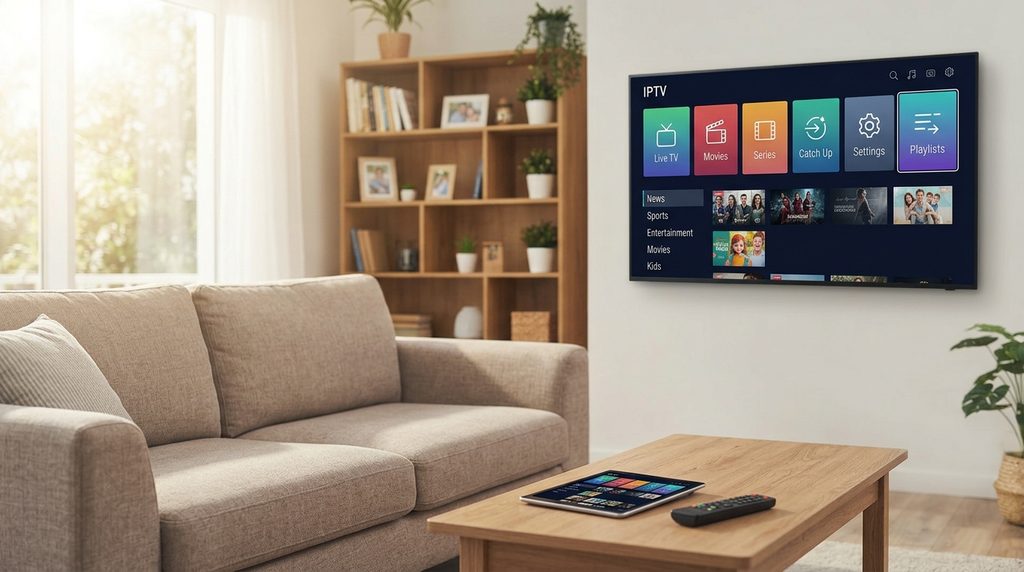
An IPTV playlist acts like a directory that tells your player where to find streams and how to group them. Rather than sending heavy video data through the playlist file itself, the list provides structured pointers, category labels, and stream addresses that your app reads and displays. Understanding this relationship makes it much easier to see why a playlist might load cleanly while an individual stream or schedule takes a moment to respond.
Depending on your player app and service provider, you will typically work with one of two main connection methods:
| Method | What You Enter | Best For |
| M3U URL | A single link pointing to your channel list file | Quick setup across most smart TV and mobile players |
| Xtream Codes API | Server URL, Username, and Password | Faster group syncing, catch-up TV, and VOD sorting |
With an M3U link, the player reads a structured text playlist that maps names and group tags to stream locations. With Xtream Codes, the player communicates directly with structured API endpoints that often separate live channels, movies, series, and catch-up programs more cleanly. Both approaches can deliver reliable results when your app supports them properly, though some interfaces handle group filtering and metadata updates more smoothly through one format than the other.
Before starting your IPTV Playlist Setup, double-check that your device is connected to a stable network and that your chosen app supports the format provided to you. A weak Wi-Fi signal, temporary DNS delay, or outdated player version can interrupt the initial download before the channel list finishes building. Having your credentials ready in advance prevents timeouts and saves time during configuration, especially when you are setting up a television screen where typing long links slowly increases the chance of error.
It also helps to remember that different media players interpret playlist tags in slightly different ways. One app may immediately group channels by country or genre, while another places everything into a flat list until you enable group sorting in settings. Knowing what your player expects ahead of time keeps you from assuming a playlist is broken when it simply needs a quick view or sync adjustment.
2. Gather Your Playlist Credentials Safely
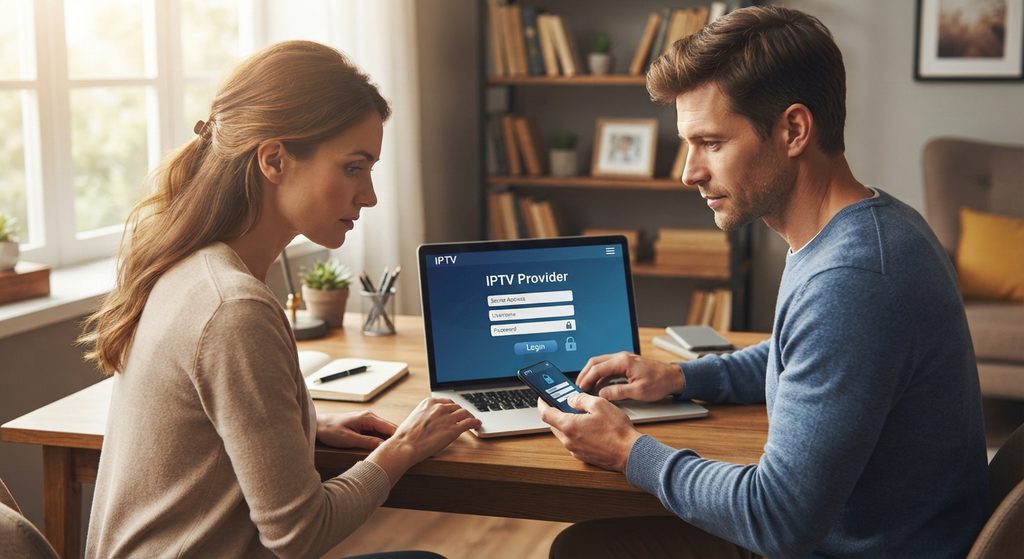
Accuracy matters when copying playlist links or login details during your IPTV Playlist Setup. Even a single missing character, extra space at the end of a URL, or wrong capitalization in a password can stop a list from loading. Because streaming credentials often mix letters, numbers, symbols, and long host names, rushing through copy-and-paste or relying on remote-control typing frequently causes preventable login failures before your IPTV Playlist Setup even finishes syncing.
Keep these practical habits in mind while preparing your details for a smooth IPTV Playlist Setup:
- Copy the exact link: Paste your M3U URL directly rather than typing it out on a TV remote whenever possible. Using a companion phone remote, web portal, or clipboard tool reduces character slips on long URLs and keeps your IPTV Playlist Setup accurate from the start.
- Verify server fields: For Xtream Codes, make sure the server address, username, and password each go into their matching boxes. Putting a full web address with extra path segments into the wrong box or swapping username and password fields is a common cause of rejected logins during an IPTV Playlist Setup.
- Protect private links: Treat your playlist URL like a password so unauthorized devices do not use your connection slots. Anyone who has your raw playlist link may be able to read your stream endpoints or consume active connections allowed on your plan.
If a link looks unusually long or includes parameters, keep it intact exactly as given. Editing parts of a playlist URL manually often breaks authentication or prevents channels from populating. Those extra query parameters or token strings usually carry essential session or account identifiers that the server checks before returning your list and completing your IPTV Playlist Setup.
Storing a clean copy of your credentials in a private note before you begin also makes troubleshooting much calmer if something goes wrong. If an app crashes mid-sync or you need to re-enter details on a second device, having the exact original string ready avoids guesswork, saves you from hunting through old messages, and lets you finish your IPTV Playlist Setup without stress.
crashes mid-sync or you need to re-enter details on a second device, having the exact original string ready avoids guesswork and saves you from hunting through old messages. If you ever suspect a link has been shared or exposed unnecessarily, rotating or refreshing your credentials with your provider is a smart precaution before continuing your setup.
Follow the 6 Simple Steps to Configure Your Player
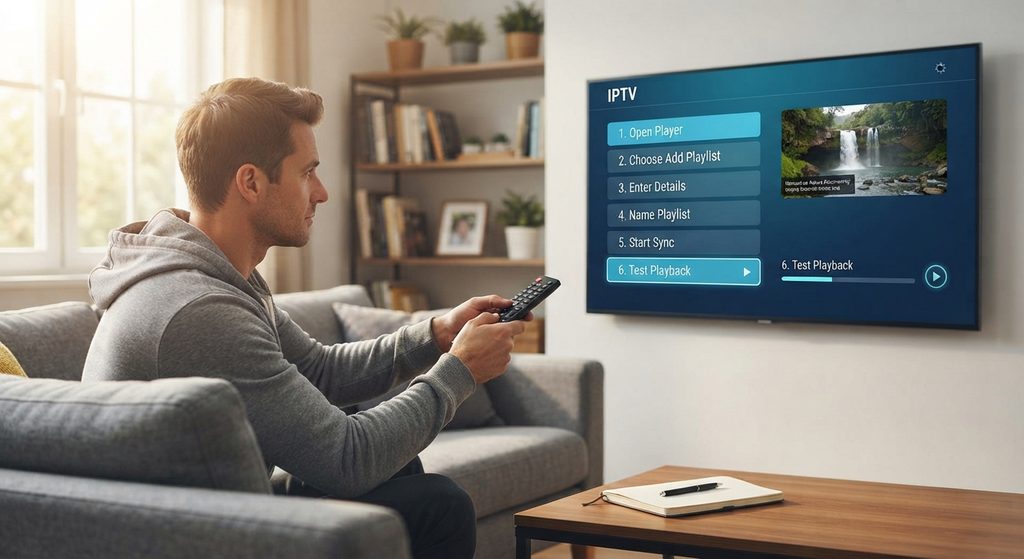
While menu names vary slightly between television apps, streaming sticks, and mobile devices, most players follow the same general workflow. Getting your setup right from the start saves hours of frustration later, especially when you are configuring a new screen or helping someone else in your home get started. Many playback hiccups happen in the first few minutes because a step was rushed or an app screen was closed before background data finished loading.
Take your time walking through the process so every category, stream source, and metadata entry settles properly. Use these six steps to get your channels loaded cleanly:
- Open your IPTV player: Launch the application on your smart TV, streaming box, phone, or tablet and allow required network or storage permissions. Allowing storage access is particularly helpful when players cache channel logos, program listings, or local playlist files so menus load faster on future visits.
- Choose the add-playlist option: Go to settings or the main menu and select Add Playlist, Add User, or Xtream Codes. Depending on the interface, this option may sit under a Playlists, Accounts, or Sources tab, or appear right on the welcome screen during first-time launch.
- Enter your connection details: Paste your M3U URL or fill in your server URL, username, and password carefully. Double-check whether your server address requires
http://orhttps://, and make sure there are no trailing spaces after you paste or type anything into a field. - Name the playlist: Give the entry a clear label—such as Living Room TV, Bedroom Stick, or Main Setup—so you can identify it easily later. Clear naming becomes essential if you ever manage multiple playlists, test different configurations, or share a device with other family members.
- Start the initial sync: Save your settings and let the player download channel groups, streams, and metadata without closing the app early. During this phase, the application fetches live channel lists, VOD folders, and show details, which can take a little longer on large libraries or budget streaming sticks.
- Test playback: Open a channel and a movie or show entry to confirm that video starts smoothly and audio plays in sync. Testing both live television and on-demand titles early verifies that your connection handles different stream formats without freezing or dropping audio.
Once the first sync finishes, give the app a moment to index categories. Large channel lists can take a little longer to parse on lower-powered streaming hardware, and letting the interface settle before scrolling rapidly helps prevent temporary lag or UI stutter. If your player offers a preview window or channel switcher, try moving between two or three feeds to see how quickly the stream initializes.
4. Organize Channel Groups and Favorites
A large playlist can feel overwhelming if hundreds of categories appear at once after an IPTV Playlist Setup. Taking a few minutes to tidy up your layout makes everyday browsing much faster for everyone in the household. Instead of forcing everyone to wade through countries, sports leagues, and film archives they never open, you can shape the interface around how your household actually watches television and get the most out of your IPTV Playlist Setup.
A clean layout also reduces accidental clicks on sections you prefer to keep out of everyday view. When menus are streamlined, even guests or younger viewers can find familiar options without getting lost in long lists.
- Hide unused groups: Turn off regions, sports sections, or categories you rarely watch so menus stay clean. Hiding extra groups speeds up navigation and keeps your IPTV Playlist Setup focused on relevant entertainment.
- Build a Favorites list: Pin your go-to channels and series to a dedicated favorites section for one-click access. Having a curated list means you do not have to remember exact category names every time you sit down to watch.
- Check EPG alignment: Link your Electronic Program Guide (EPG) source if separate so channel schedules match current local times. Proper time-offset alignment ensures current and upcoming show times display accurately across your IPTV Playlist Setup.
Organizing your IPTV Playlist Setup right after installation prevents clutter from building up. When family members can find their preferred channels quickly, they spend less time scrolling through long lists, and your everyday viewing routine feels far more relaxed and predictable. If your app supports custom group ordering, moving your most-used folders near the top makes an immediate difference.
outine feels far more relaxed and predictable. If your app supports custom group ordering, moving your most-used folders near the top makes an immediate difference.
5. Troubleshoot Common Playlist Loading Issues
If your channels do not appear or the list fails to update, the cause is usually straightforward. Before deleting your IPTV Playlist Setup or reinstalling the application from scratch, walk through a few quick checks that resolve the vast majority of IPTV Playlist Setup loading errors. Small input mistakes and temporary network glitches are far more common than major configuration failures.
- Check for typos or spaces: Inspect the start and end of your URL or login fields for accidental blank spaces. Mobile keyboards and TV remotes frequently add an extra space after auto-fill or copy-paste, which can cause login or playlist requests to fail immediately during your IPTV Playlist Setup.
- Refresh or reload the playlist: Use the app’s Reload, Refresh, or Update Playlist button to pull fresh channel data into your IPTV Playlist Setup. Manual refreshes are especially useful after a provider updates channel categories or when a previously loaded list looks incomplete.
- Confirm subscription status: Make sure your account is active and not exceeding allowed simultaneous connections. If too many devices try to pull streams or refresh data at the same time on a single-connection plan, playback or playlist updates can stall.
- Clear app cache: If an older list is stuck or freezing menus, clearing temporary app cache can help refresh stored data. Clearing cache removes corrupted temporary files without wiping your saved IPTV Playlist Setup login details, unlike clearing full app data.
Network hiccups can also interrupt large playlist downloads during an IPTV Playlist Setup. Switching temporarily to test your connection or restarting your router often resolves stalled syncs, especially if your local network experienced a brief packet drop or DNS delay while the file was downloading. If the problem persists on Wi-Fi, testing on another network connection can quickly show whether the issue is local to your router or device.
ften resolves stalled syncs, especially if your local network experienced a brief packet drop or DNS delay while the file was downloading. If the problem persists on Wi-Fi, testing on another network connection can quickly show whether the issue is local to your router or device.
6. Keep Your Setup Smooth Over Time
Channel lineups and app versions change periodically, so light maintenance keeps your IPTV Playlist Setup running reliably. Spending just a few minutes every couple of weeks checking how your player behaves helps catch small issues before they turn into annoying playback problems during peak viewing hours.
Refreshing your playlist occasionally ensures newly added channels appear and outdated links are cleared out. Over time, playlists can accumulate changes in group names or stream links, and a periodic refresh keeps your IPTV Playlist Setup aligned with what is currently available.
Updating your media player app when new versions roll out also helps maintain compatibility and performance improvements. Developers regularly release updates that fix player bugs, improve memory handling, and support newer device firmware. Keep your credentials stored in a safe note so you can restore your IPTV Playlist Setup quickly if you ever switch devices or reset an app. Having a clean backup note of your exact details means you never have to dig through old messages when setting up a replacement TV stick or troubleshooting a fresh installation.
Frequently Asked Questions (Q&A)
Q1: Which is better for an IPTV Playlist Setup, an M3U URL or Xtream Codes?
Neither format is universally “better” in every situation, as the right choice depends on your player application and what features you value most during an IPTV Playlist Setup. An M3U URL is straightforward because it relies on a single link that tells your player where to pull channel entries and group tags, making it convenient for quick setup on many television, mobile, and desktop players.
Xtream Codes, on the other hand, uses a server address along with a separate username and password to communicate with structured API endpoints for your IPTV Playlist Setup. Many players handle live TV, movies, series, catch-up features, and group organization noticeably cleanly through Xtream Codes. If your preferred app supports both options, test the one that loads your categories and metadata most reliably on your specific hardware to complete your IPTV Playlist Setup.
Q2: Why did my playlist fail to load even though I copied the link?
The most frequent culprit behind a failed load during an IPTV Playlist Setup is a tiny formatting slip, such as an accidental space before or after the URL, a missing character at the end of a long link, or a mismatched protocol like HTTP versus HTTPS. Television remotes and mobile keyboards often insert trailing spaces automatically after pasting text, which can break authentication right away.
Temporary network drops, DNS delays, or an expired or inactive subscription can also prevent a playlist from downloading properly. Before assuming the link itself is broken, inspect every field carefully, check your internet connection, and try hitting the app’s refresh or reload option during your IPTV Playlist Setup.
Q3: How long should the first playlist sync take?
Sync times vary depending on the size of your channel list, the amount of video-on-demand metadata included, your network speed, and the processing power of your streaming device. A compact playlist on a capable box or phone may finish within seconds, whereas a massive library on a lower-powered TV stick can take a minute or two to download and index categories.
Avoid closing the application or backing out of the sync screen while data is still transferring. Letting the initial load complete uninterrupted helps prevent half-built menus, missing groups, or sluggish scrolling right after installation.
Q4: Why are some channels missing or appearing in the wrong groups?
Missing or oddly grouped channels usually happen when group filters are turned off, a playlist has not been refreshed after recent updates, or a particular player handles playlist group tags slightly differently. Some apps hide certain categories by default or require you to enable group visibility inside playlist settings.
Start by refreshing your playlist so your player pulls the latest channel structure from your service. Next, check your group management menu to confirm that hidden categories were not switched off accidentally, and verify that your Electronic Program Guide (EPG) is linked and aligned if schedule listings look off.
Q5: Can I use the same playlist details on multiple devices at once?
Whether you can stream or sync on multiple devices simultaneously depends on the connection limit allowed by your plan rather than the playlist format itself. Even if a player lets you save your credentials on more than one screen, exceeding your allowed active connections can cause playback interruptions, login errors, or stalled updates.
If you set up your IPTV Playlist Setup on a second television, tablet, or travel device, keep track of how many screens are actively pulling streams at the same time. Naming each saved playlist clearly—such as Living Room or Bedroom—also helps you keep track of where your credentials are stored.
Q6: Should I clear app cache or reinstall the player when menus freeze?
Clearing the app cache is usually the best first step when menus lag, thumbnails look stuck, or an older playlist refuses to refresh properly. Cache clearing removes temporary stored files that may have become corrupted while preserving your saved playlist entries and login details.
Reinstalling the entire app or clearing full app data is more disruptive because it wipes your configuration and forces you to redo your setup from scratch. Save those heavier steps for situations where the player itself crashes repeatedly or fails to launch after an update.
Q7: How often should I refresh my playlist and update my player app?
Refreshing your playlist occasionally—such as whenever new channels are announced, categories look outdated, or a stream link stops responding—keeps your lineup current without adding extra work to your routine. Most players let you trigger a manual reload in just a couple of clicks.
Checking for player app updates every few weeks is equally helpful because updates often include bug fixes, smoother memory handling, and better compatibility with newer operating system versions. Paired with a safely backed-up copy of your credentials, light upkeep keeps your setup running smoothly over the long haul.


